
iPhone & iPad · Block porn & explicit content
Block browsers other than Safari
Our Safari Extension only works in Safari, so close the other doors.
Why
Step 1 of 8
Why this matters
Apple only lets us add our extension to Safari. Chrome, Firefox and others aren't covered, so block them and browse in Safari. This is our recommended setup: it covers all your browsing without needing VPN protection.
Step 2 of 8
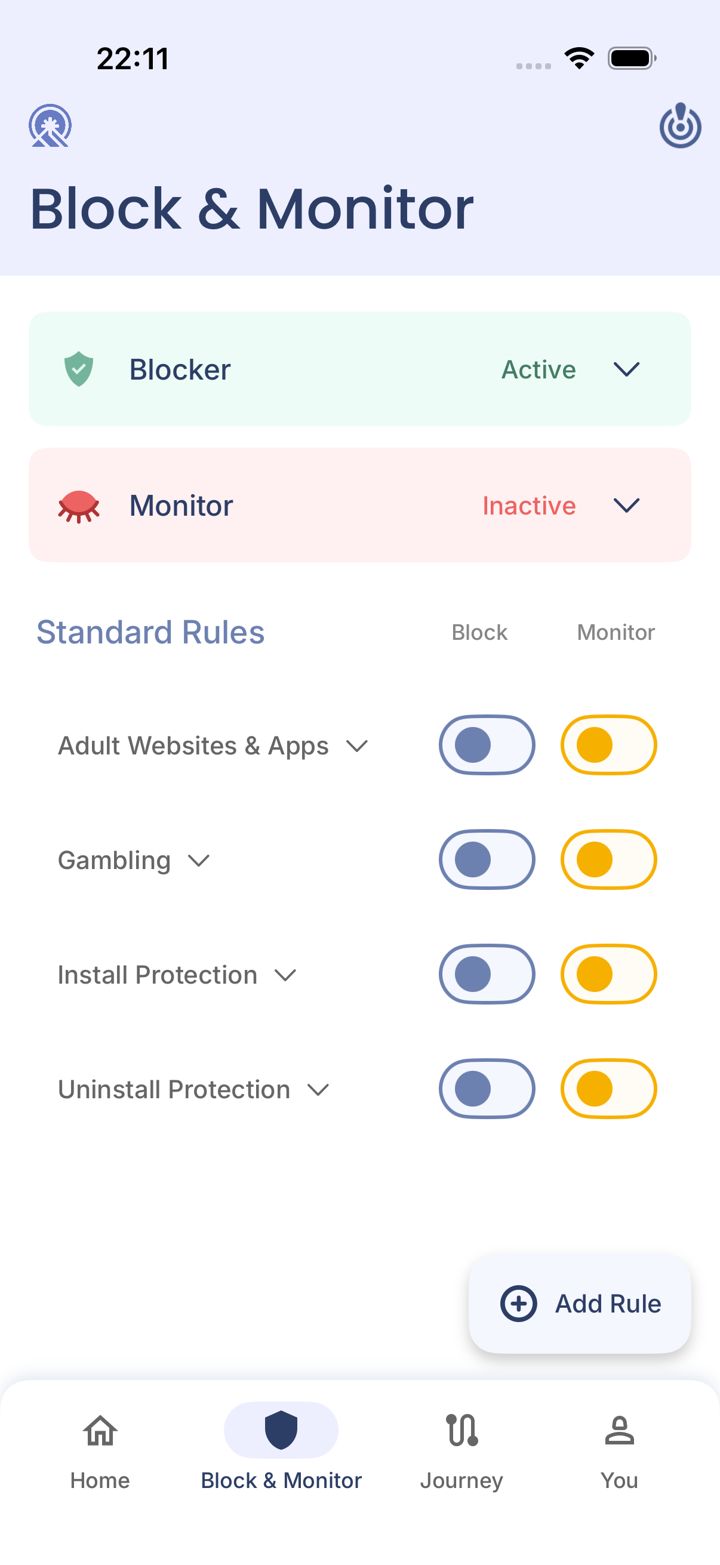
Open the Block & Monitor tab
Tap Block & Monitor in the bar at the bottom of the app.
Step 3 of 8
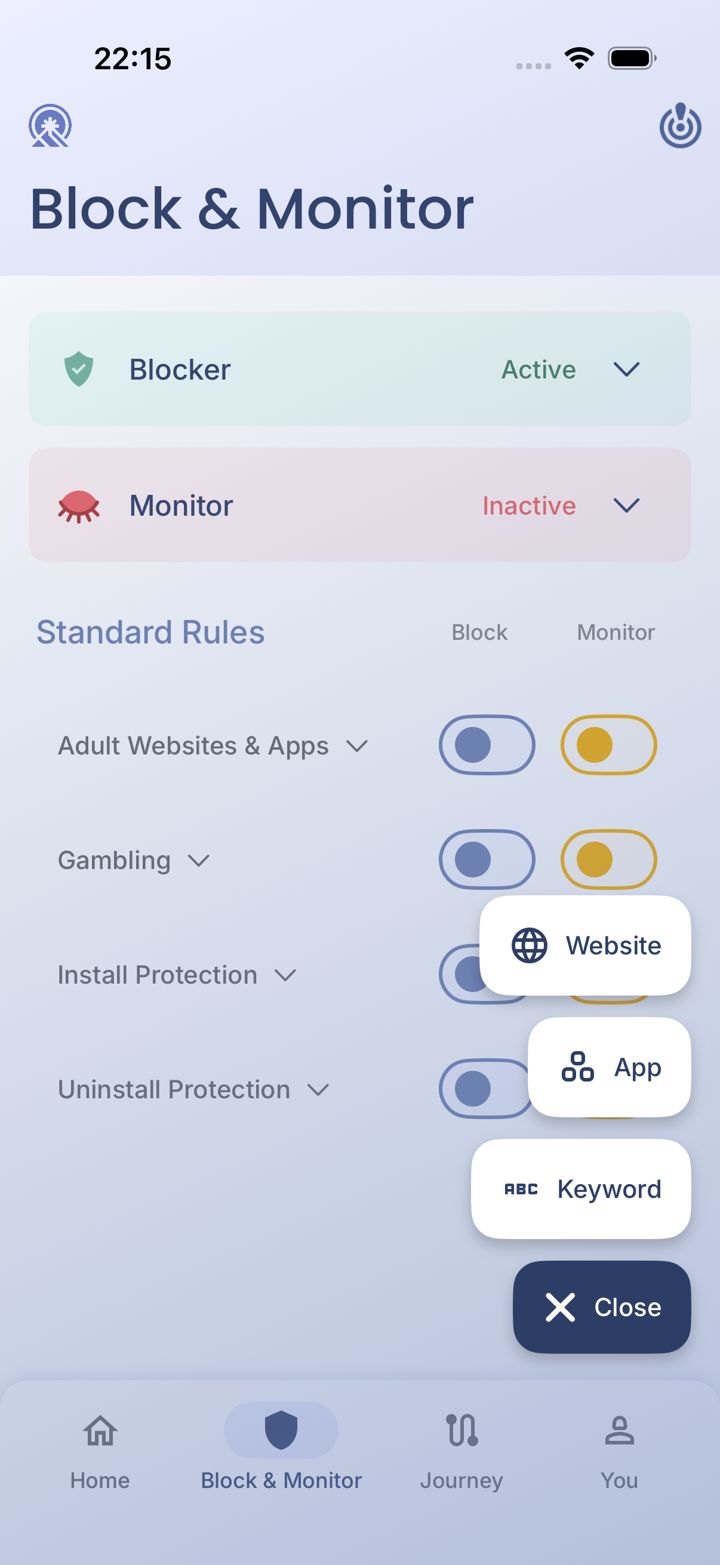
Tap Add Rule
Tap Add Rule in the bottom right corner. A small menu opens.
Step 4 of 8
Choose App
Tap App.
Step 5 of 8
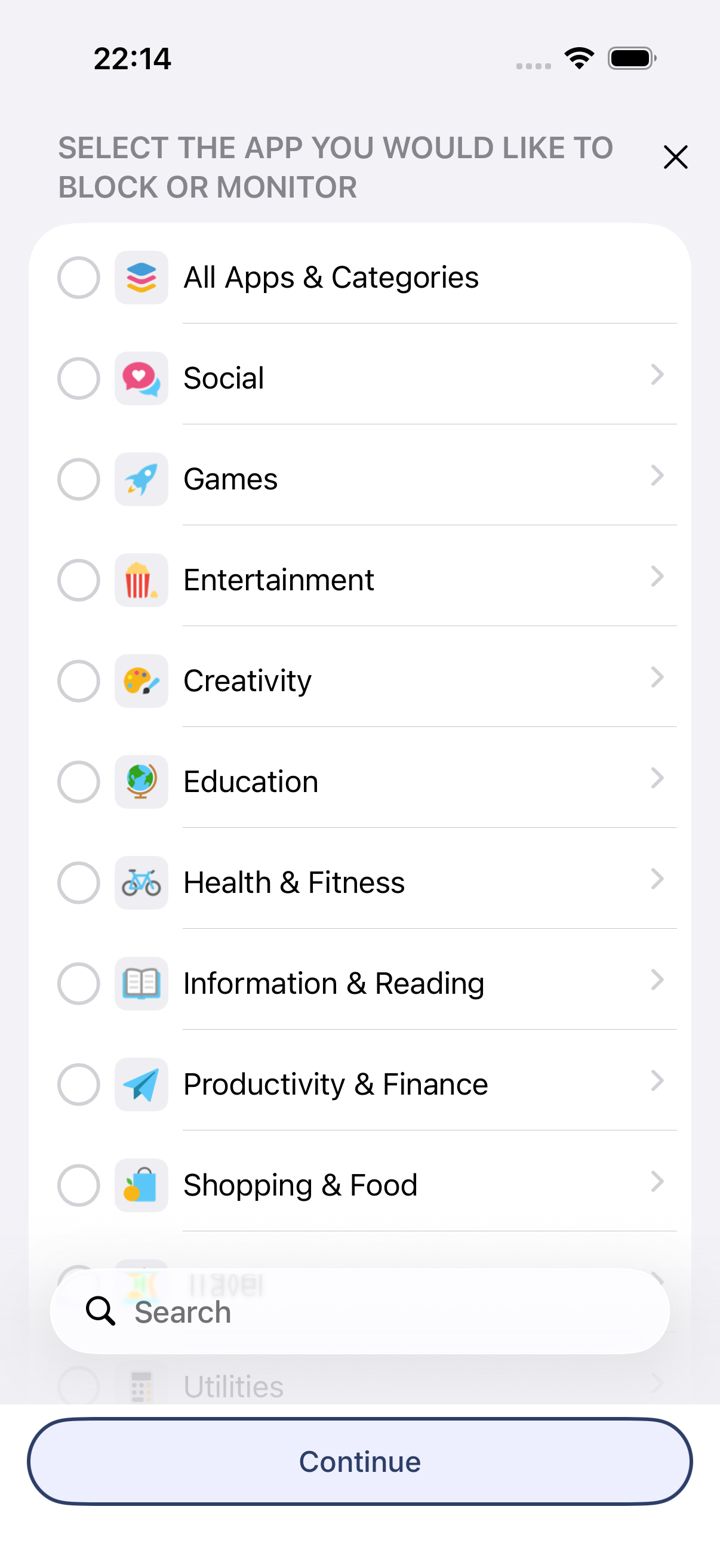
Search for each browser
Tap Search, find Chrome, Firefox, Edge, Brave or any other browser, and select them.
Step 6 of 8
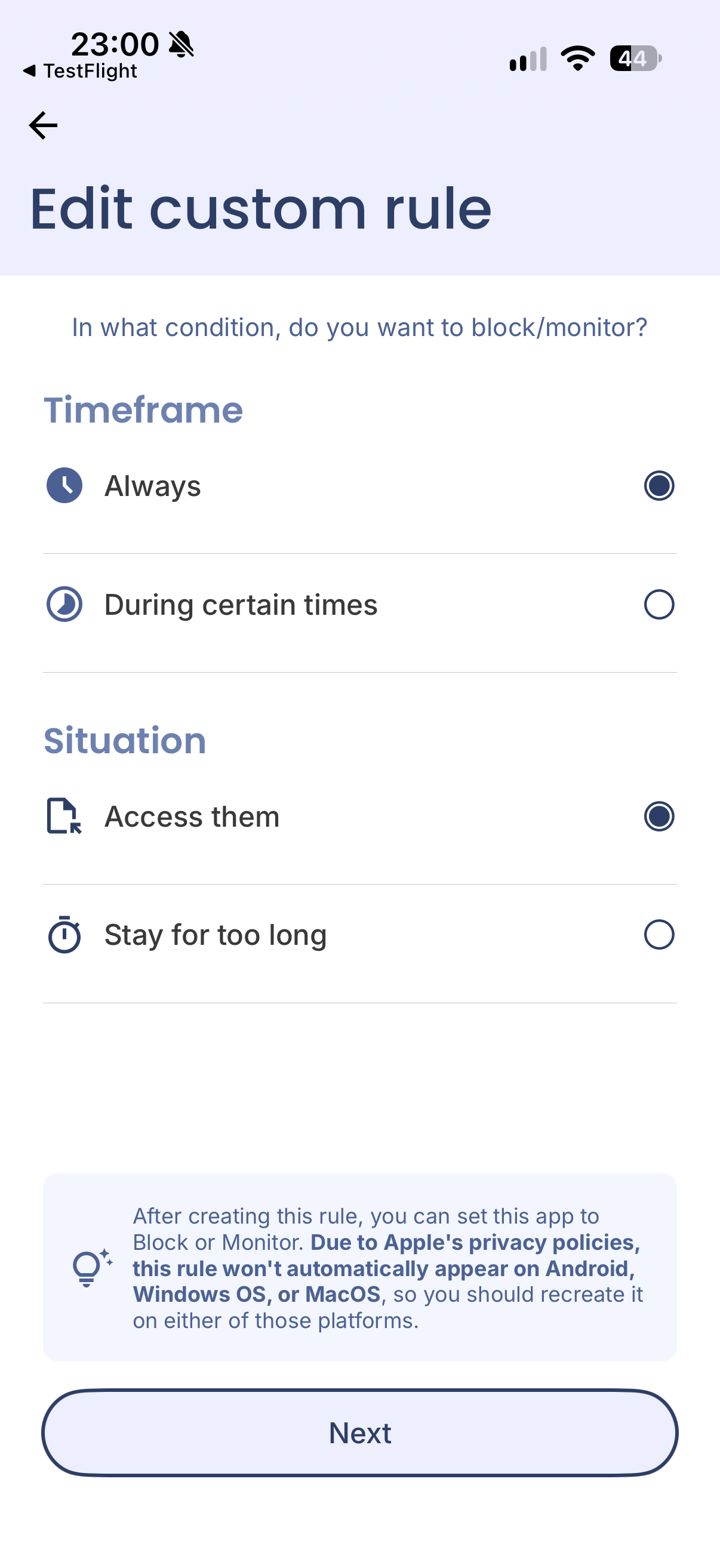
Keep Always and Access them
Leave Always and Access them selected, then tap Next.
Step 7 of 8
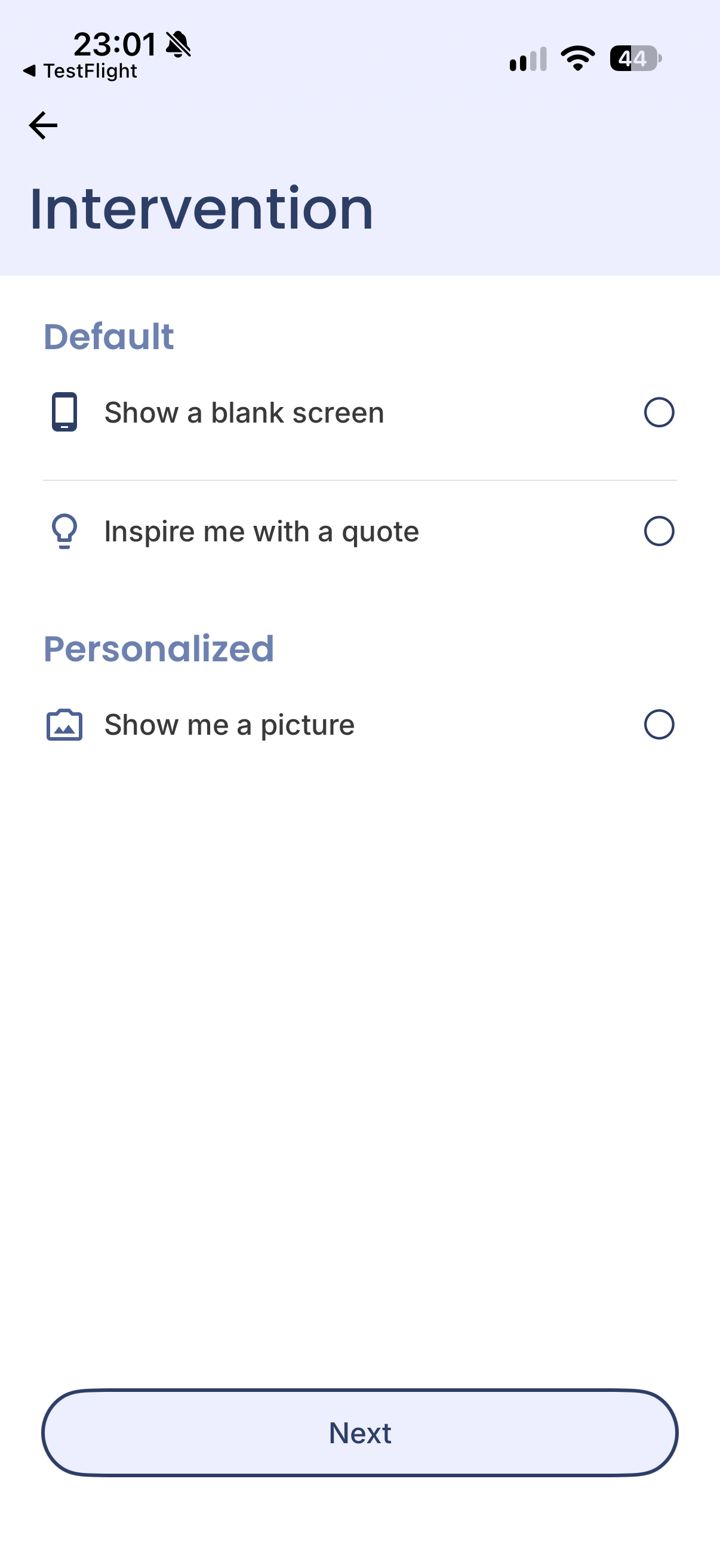
Choose what you see when it's blocked
Pick a blank screen, an inspiring quote, or a picture you choose. Then tap Next.
A personal picture (your family, a goal) is often the most effective reminder in a weak moment.
LeadMeNot · Block & Monitor
Step 8 of 8
Stop new browsers being installed
Turn on Install Protection so a new browser can't be downloaded. See Stop new apps being installed.
Did this work?
Great. Here's what people usually do next:
Sorry about that. Email Jason and we'll include which guide and step you were on, or ask our assistant.