
iPhone & iPad · Get started
Set up LeadMeNot for the first time
Download, answer a few questions, start your trial and switch protection on.
App Store
Open App StoreStep 1 of 17
Download LeadMeNot
Get LeadMeNot from the App Store on your iPhone or iPad.
Step 2 of 17
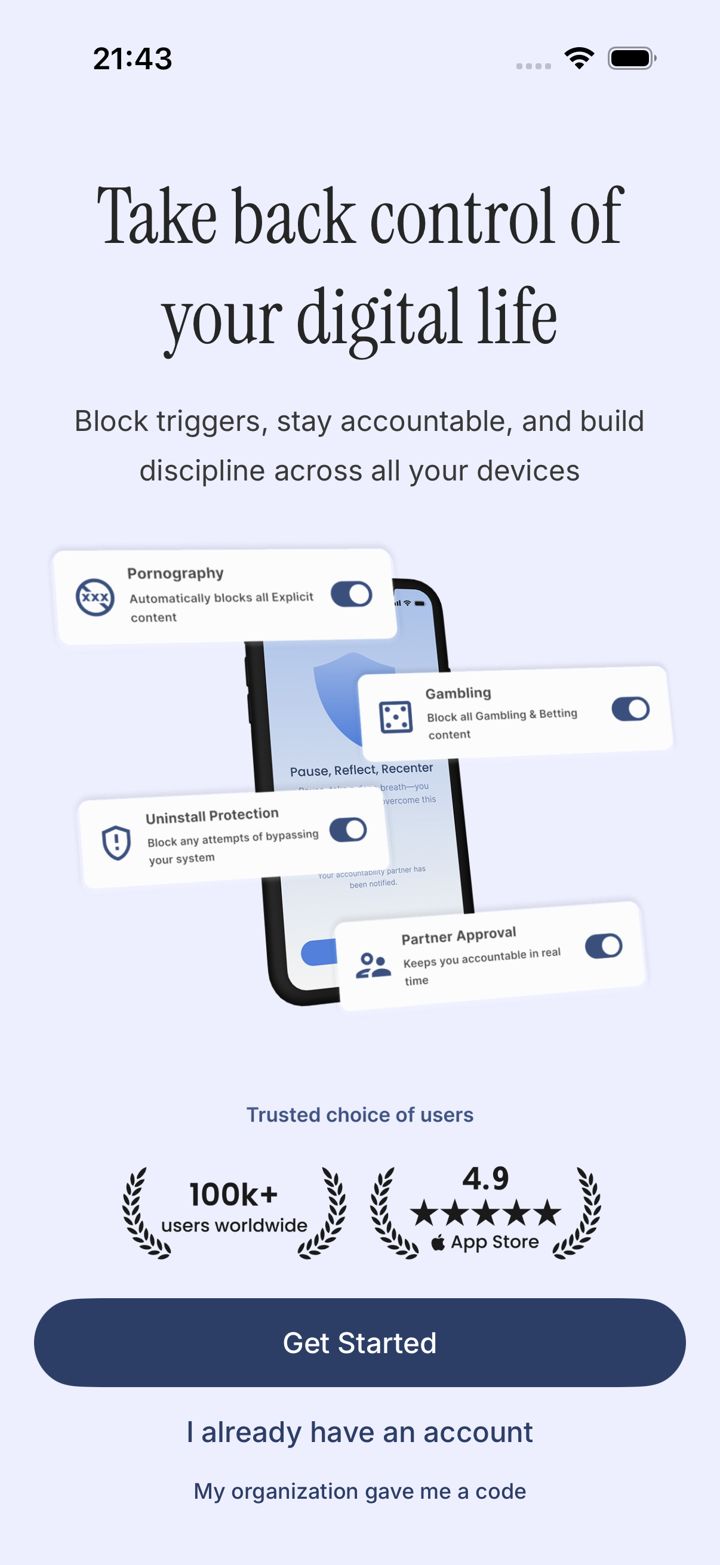
Tap Get Started
Open LeadMeNot and tap Get Started.
Already have an account? Tap I already have an account instead. Got a code from your church or organization? Tap My organization gave me a code.
Step 3 of 17
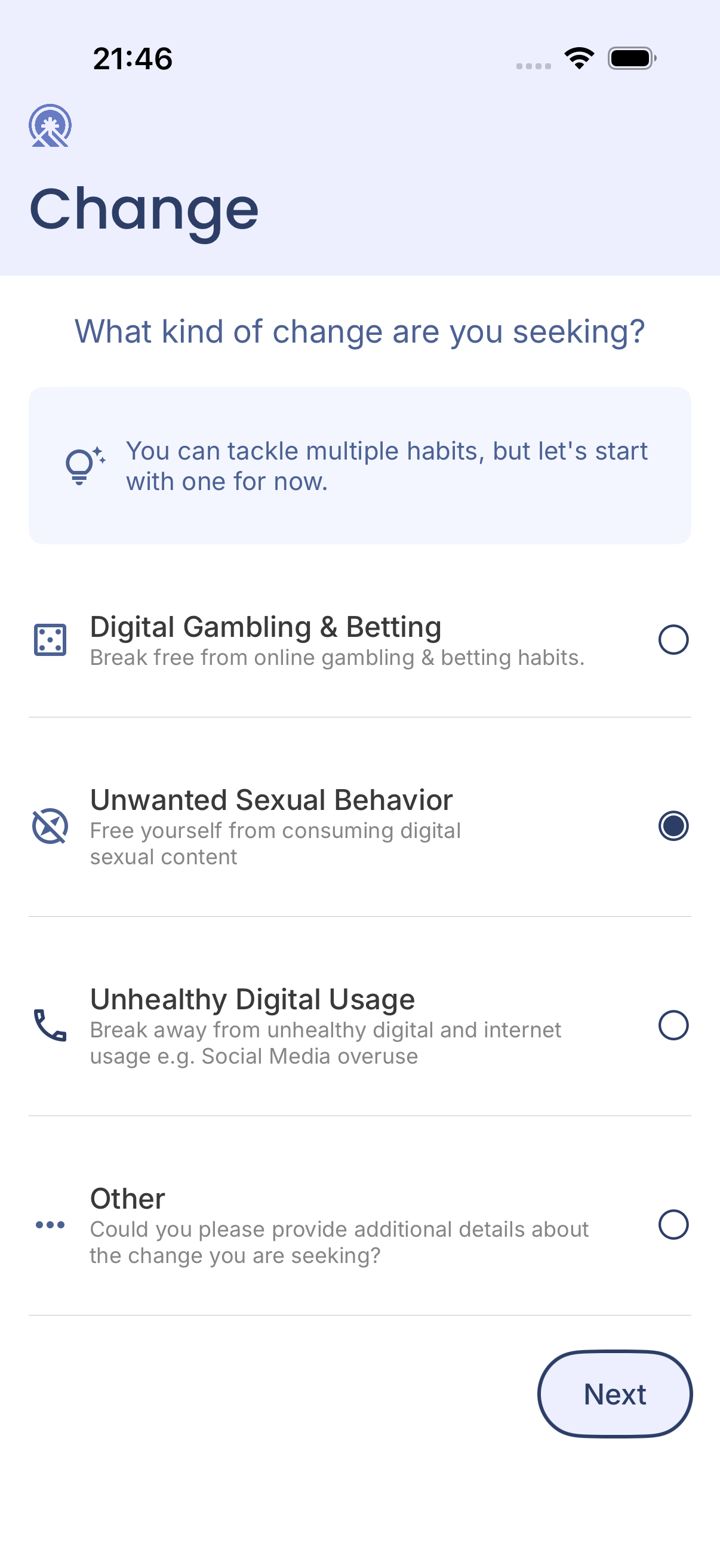
Pick the change you want to make
Choose the area you want to work on first, then tap Next.
Start with one area. You can add more later, including gambling and social media.
Step 4 of 17
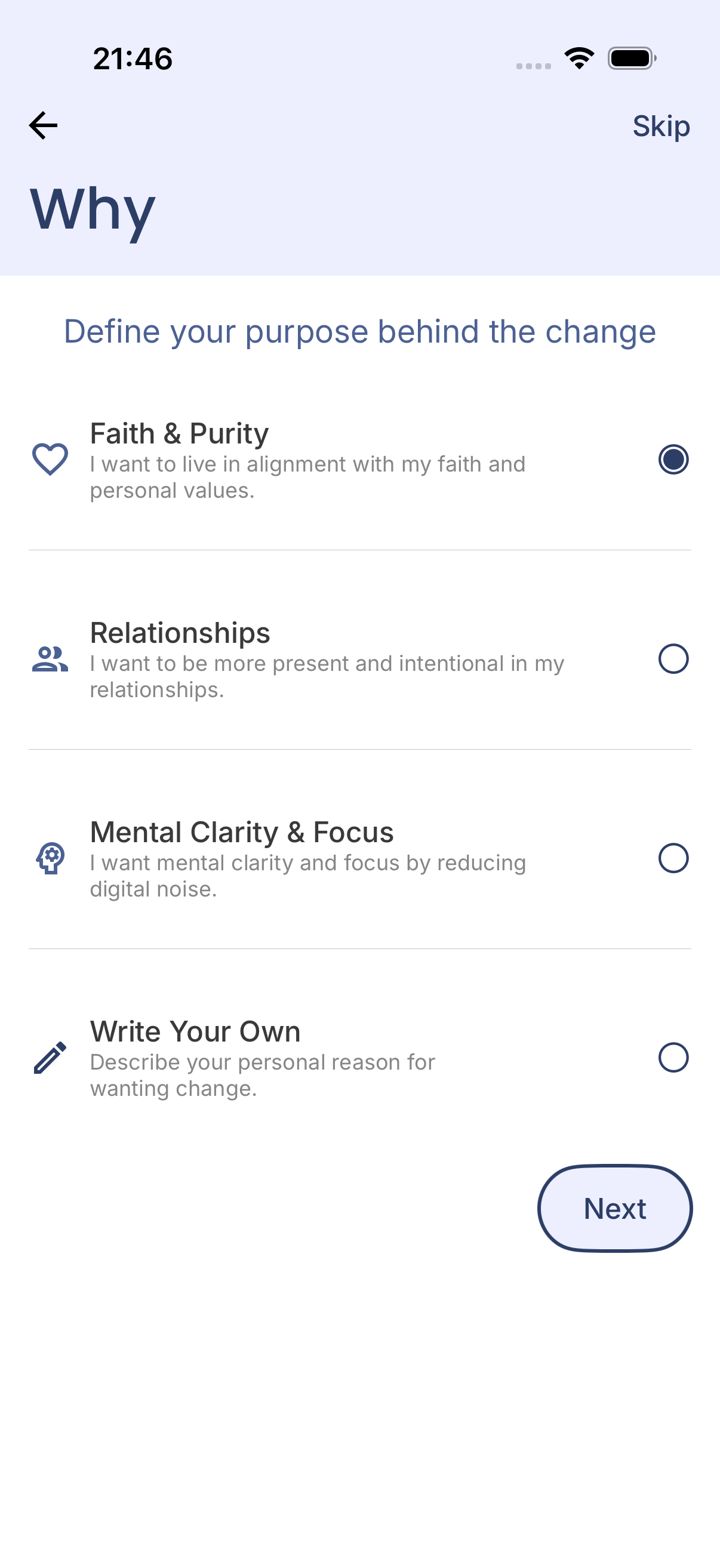
Tell us why
Pick the reason behind the change, or write your own, then tap Next. We show this back to you on the Home tab as My Why.
Step 5 of 17
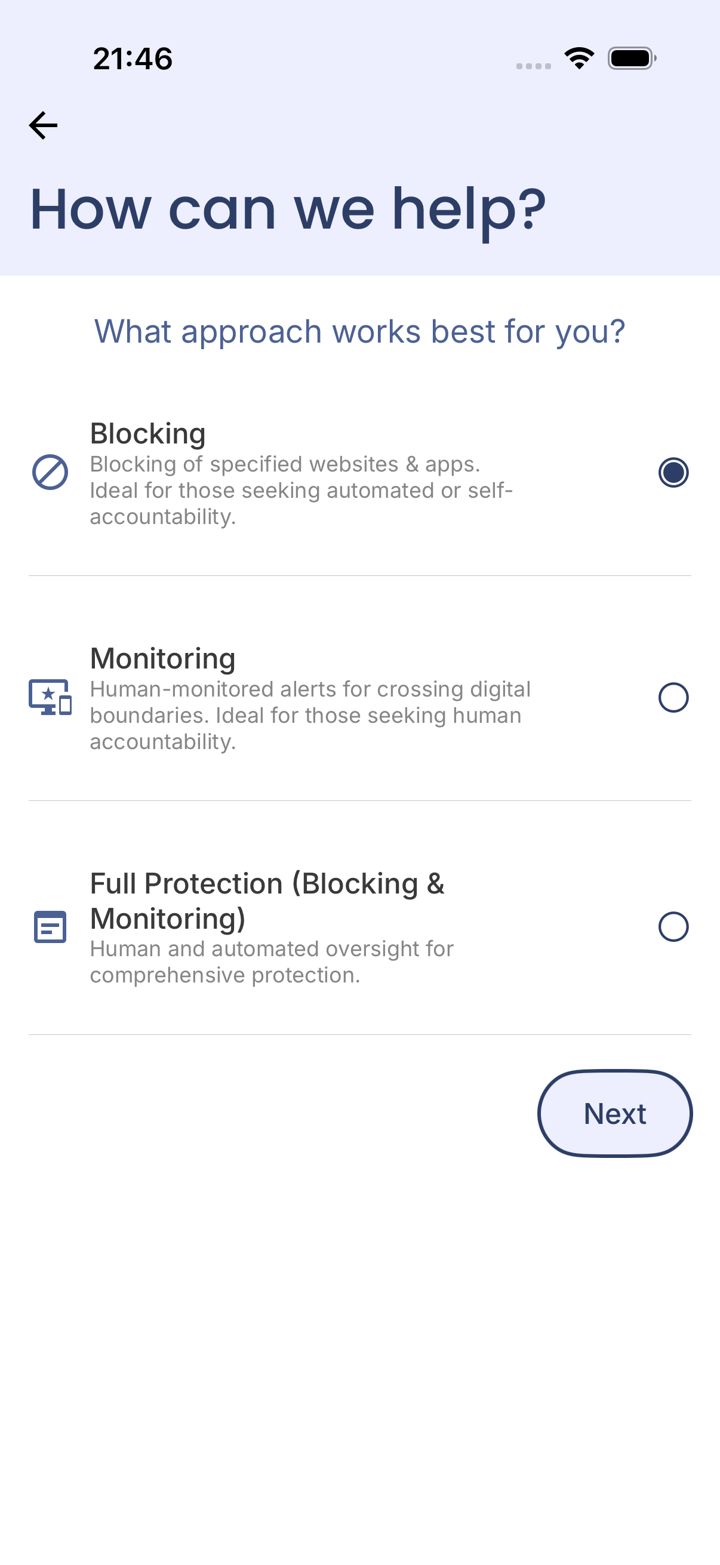
Choose how you want to be protected
Pick Full Protection (Blocking & Monitoring) for the strongest setup, then tap Next.
If you pick Blocking only, setup won't ask you to add an accountability partner and nobody is told when you hit a rule. Pick Monitoring or Full Protection if you want a partner.
Step 6 of 17
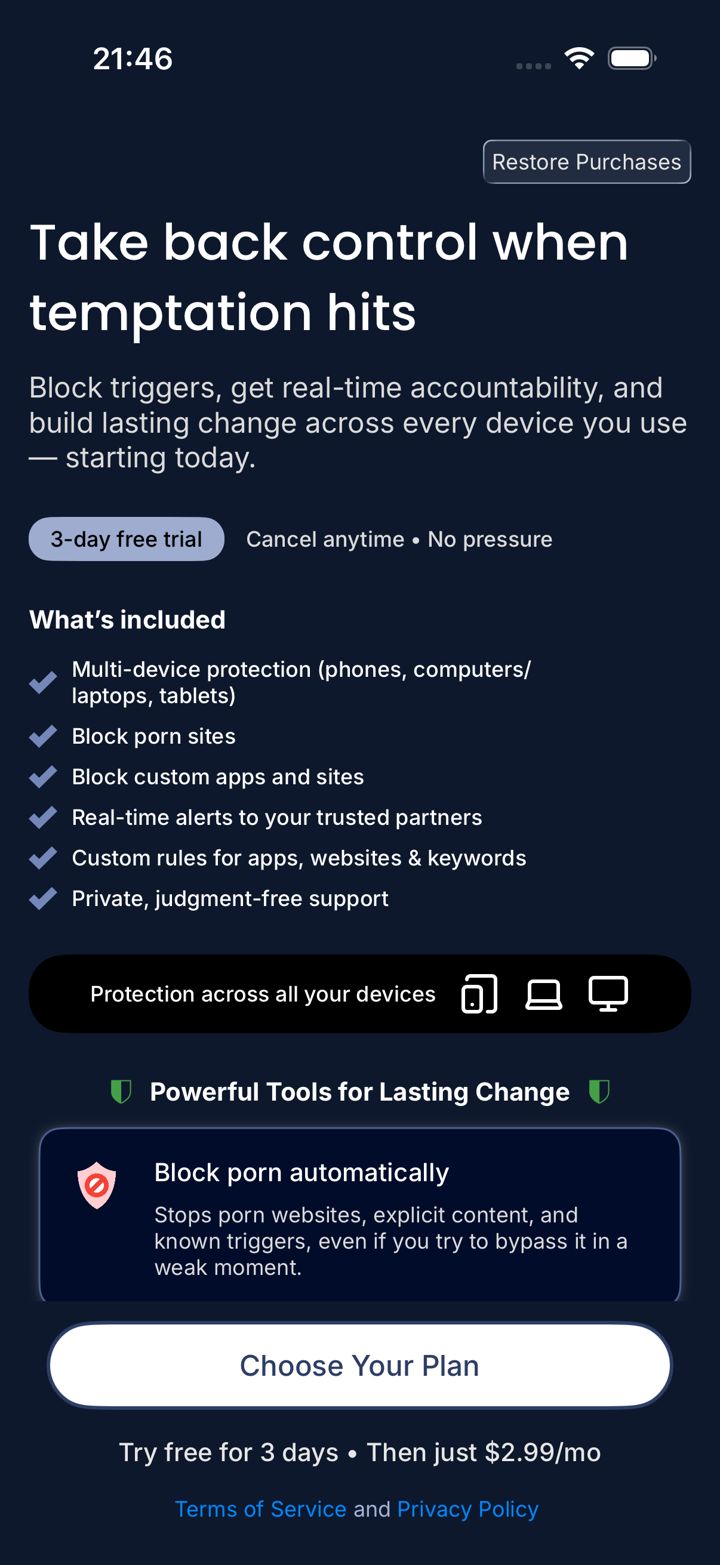
Tap Choose Your Plan
Review what's included, then tap Choose Your Plan.
Step 7 of 17
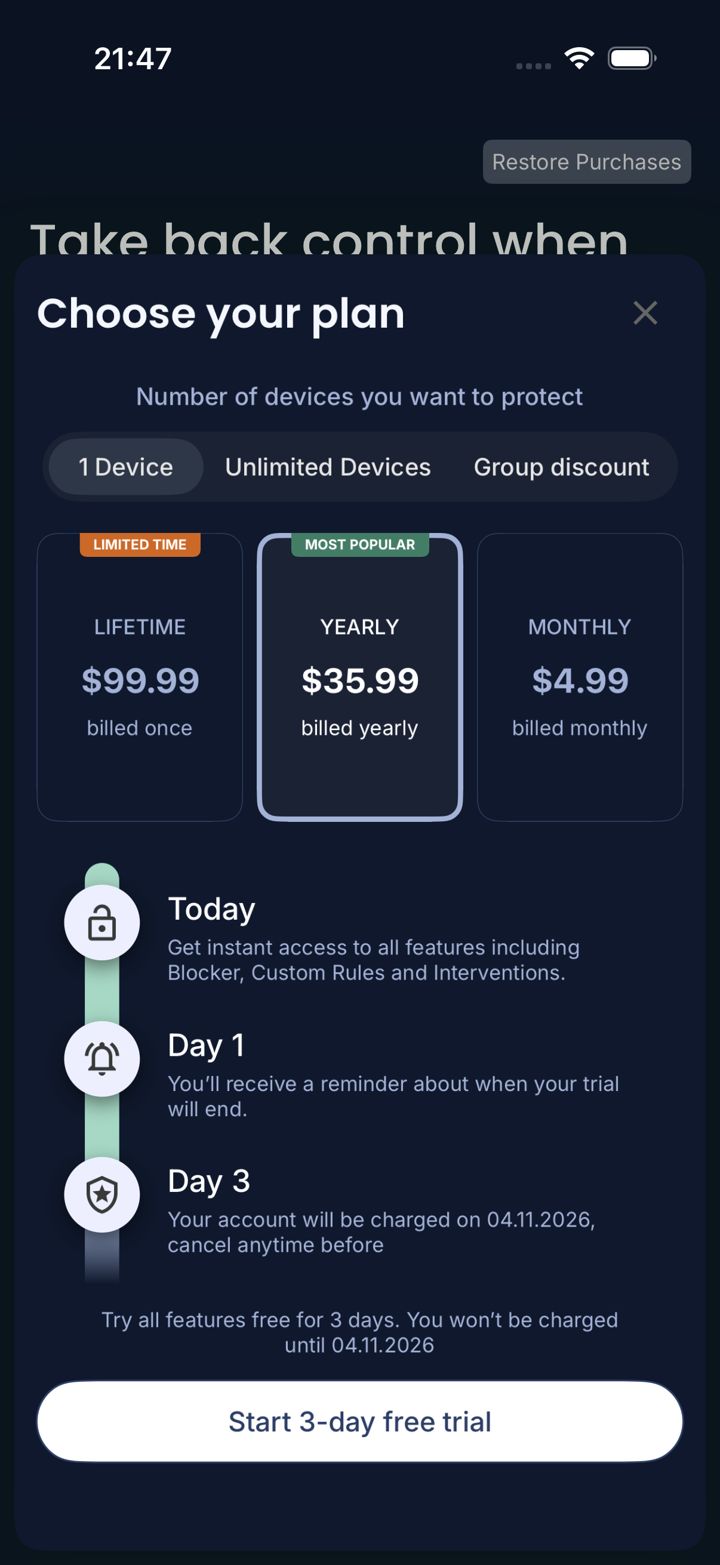
Pick a plan and start your free trial
Choose 1 Device or Unlimited Devices at the top, pick Lifetime, Yearly or Monthly, then tap Start 3-day free trial.
You can cancel any time in the App Store before the trial ends. If cost is a barrier, email jason@leadmenot.org.
Step 8 of 17
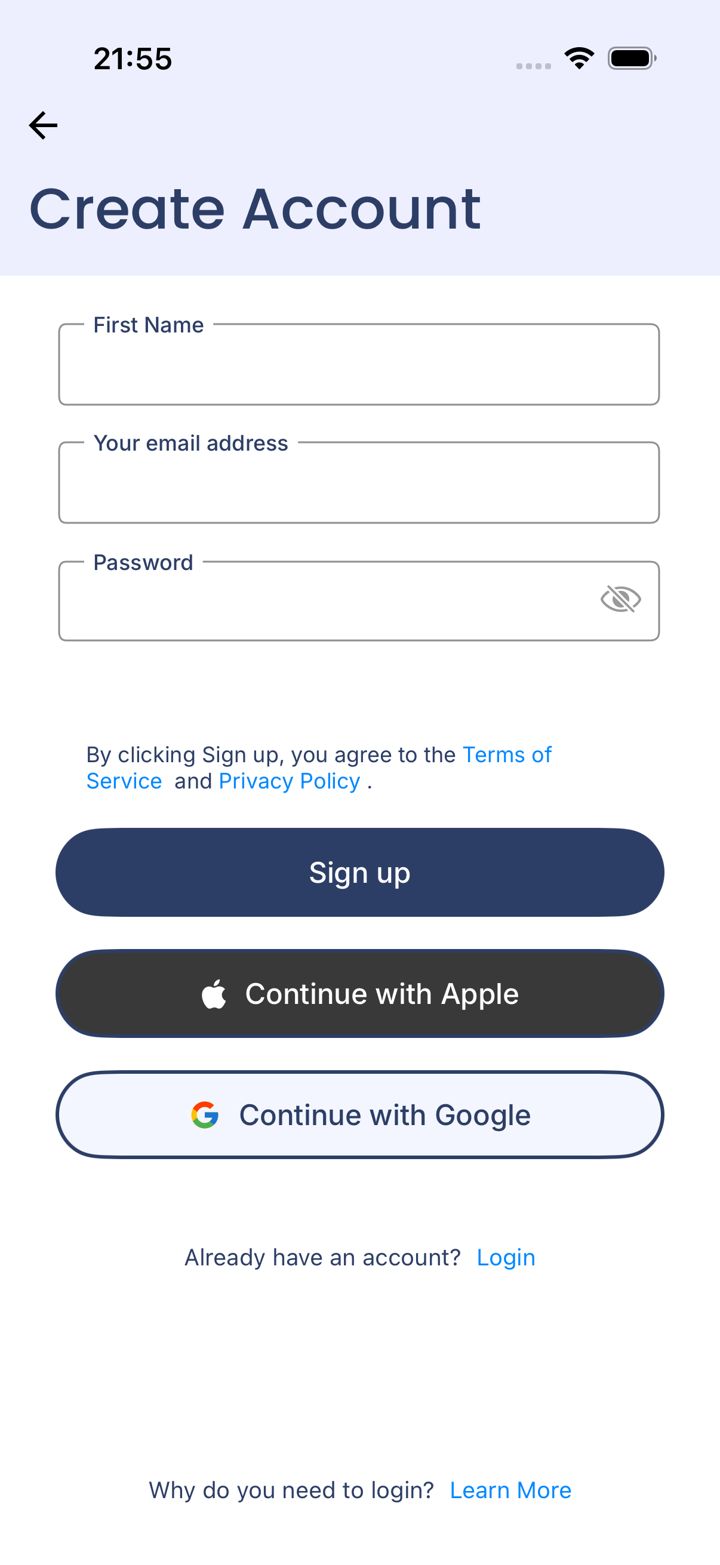
Create your account
Sign up with your name, email and a password, or use Continue with Apple or Continue with Google.
Remember which option you used. Logging in a different way later creates a separate account.
Step 9 of 17
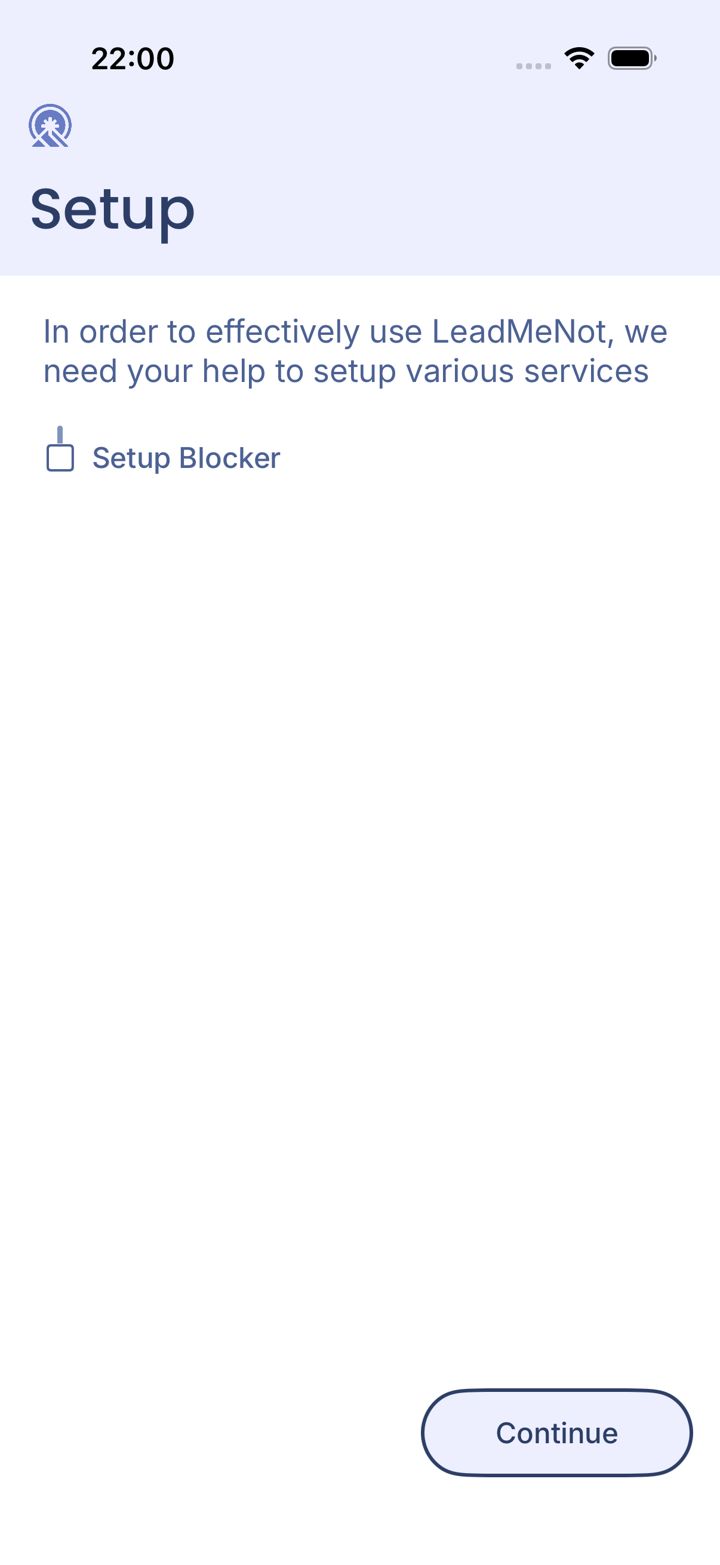
Start setup
Tap Continue to set up your protection.
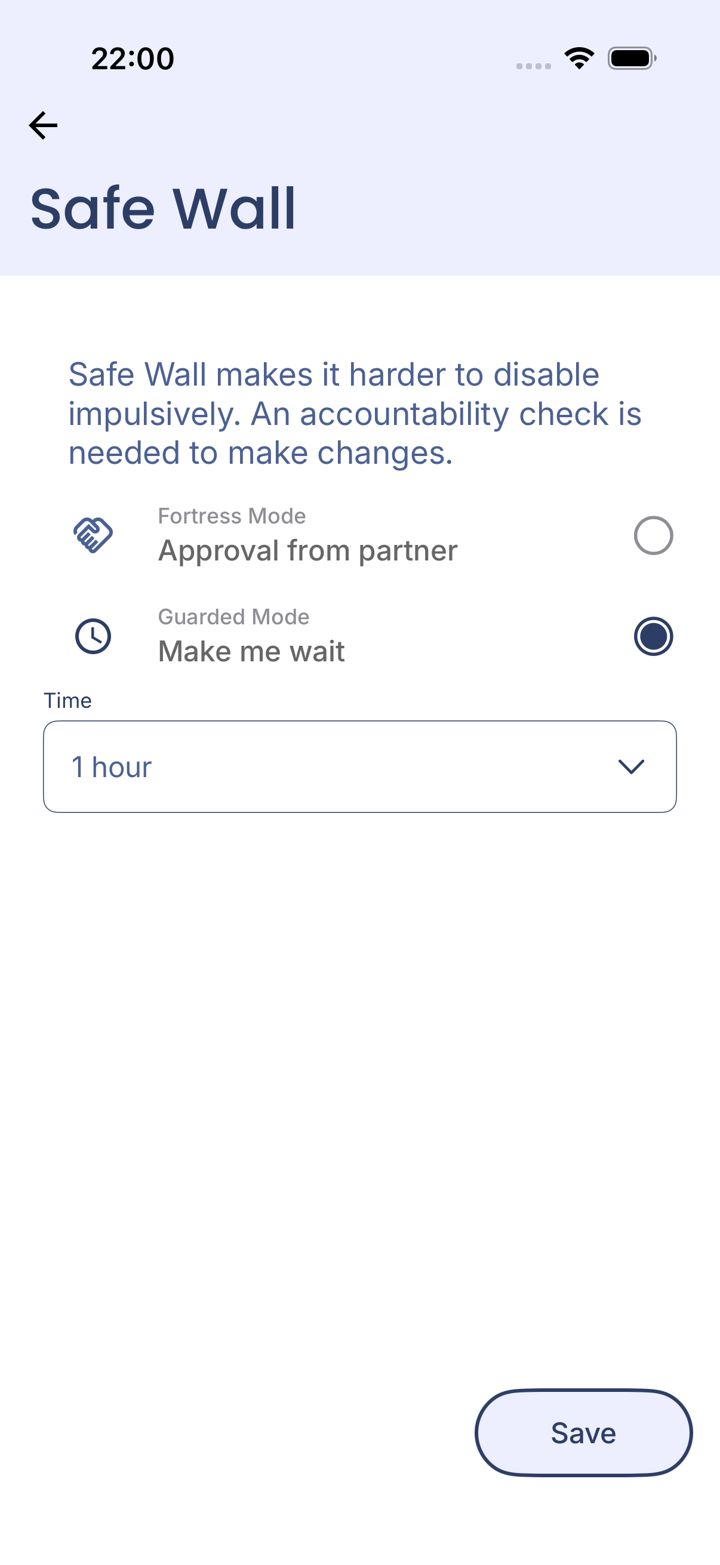
Step 10 of 17
Choose your Safe Wall
Safe Wall decides what it takes to switch protection off. Pick Make me wait and a wait time, then tap Save.
Want your partner to approve changes instead? Follow Set up with a partner from the start. You can also change this later.
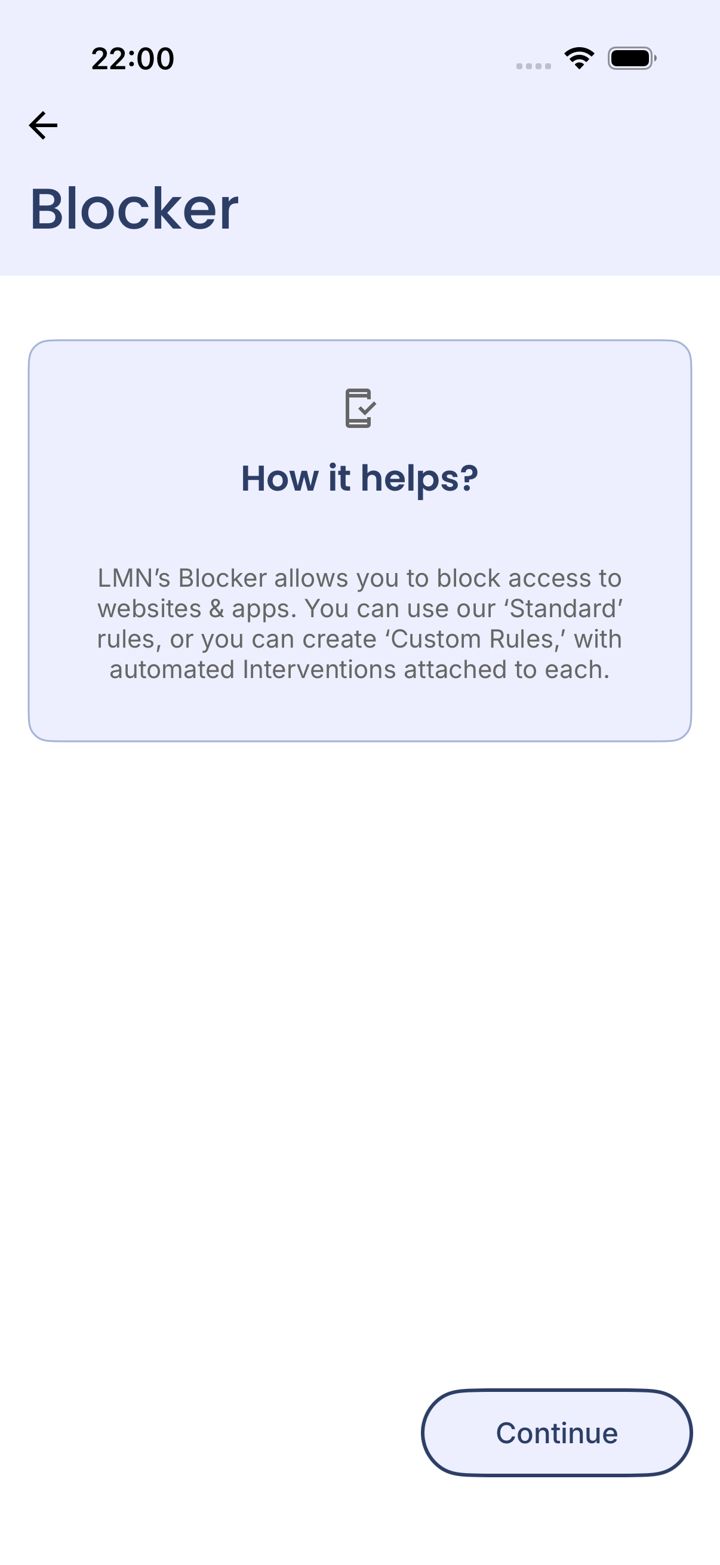
Step 11 of 17
Continue to the Blocker
Tap Continue.
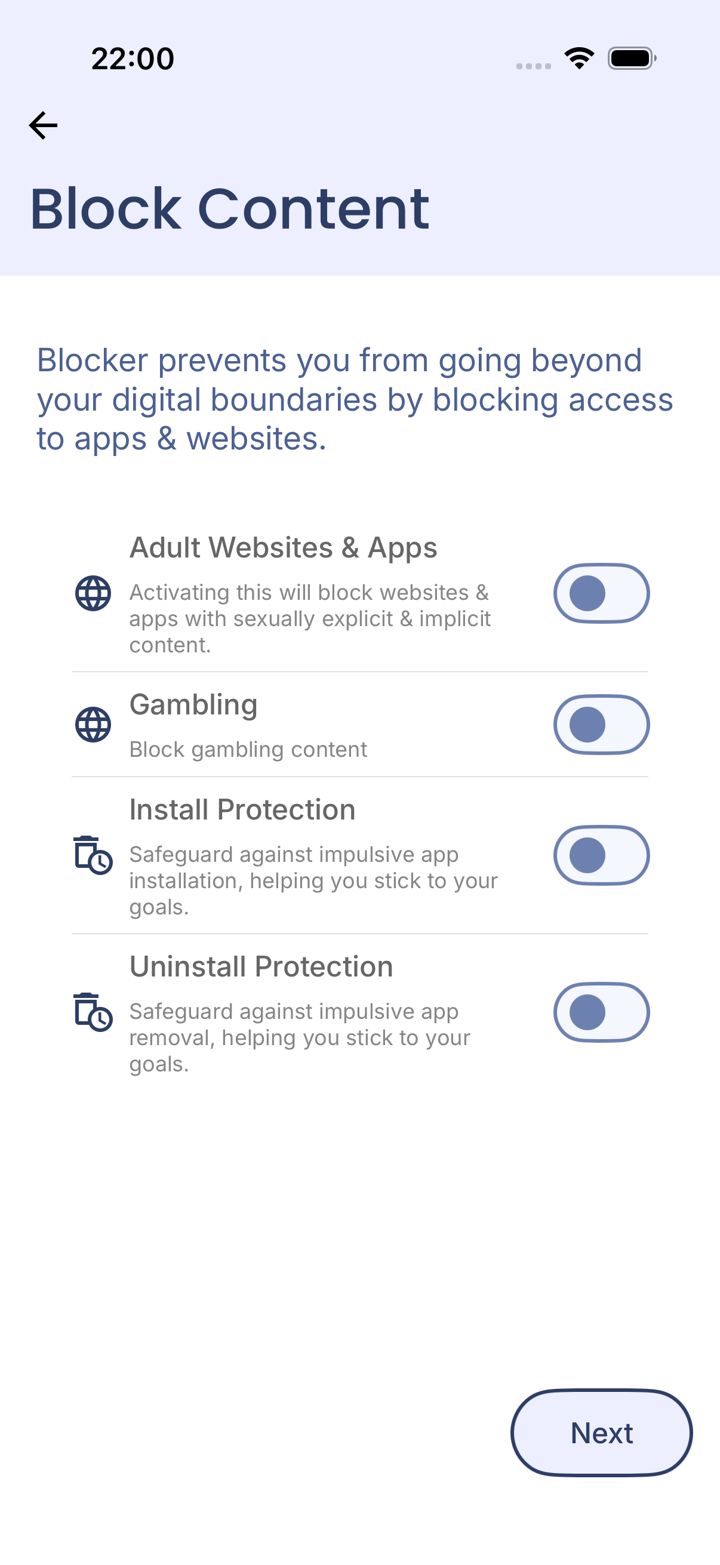
Step 12 of 17
Switch on what you want blocked
Turn on each switch you want: Adult Websites & Apps, Gambling, Install Protection and Uninstall Protection. Then tap Next.
These switches start off. If you tap Next without turning any on, setup finishes with nothing blocked.
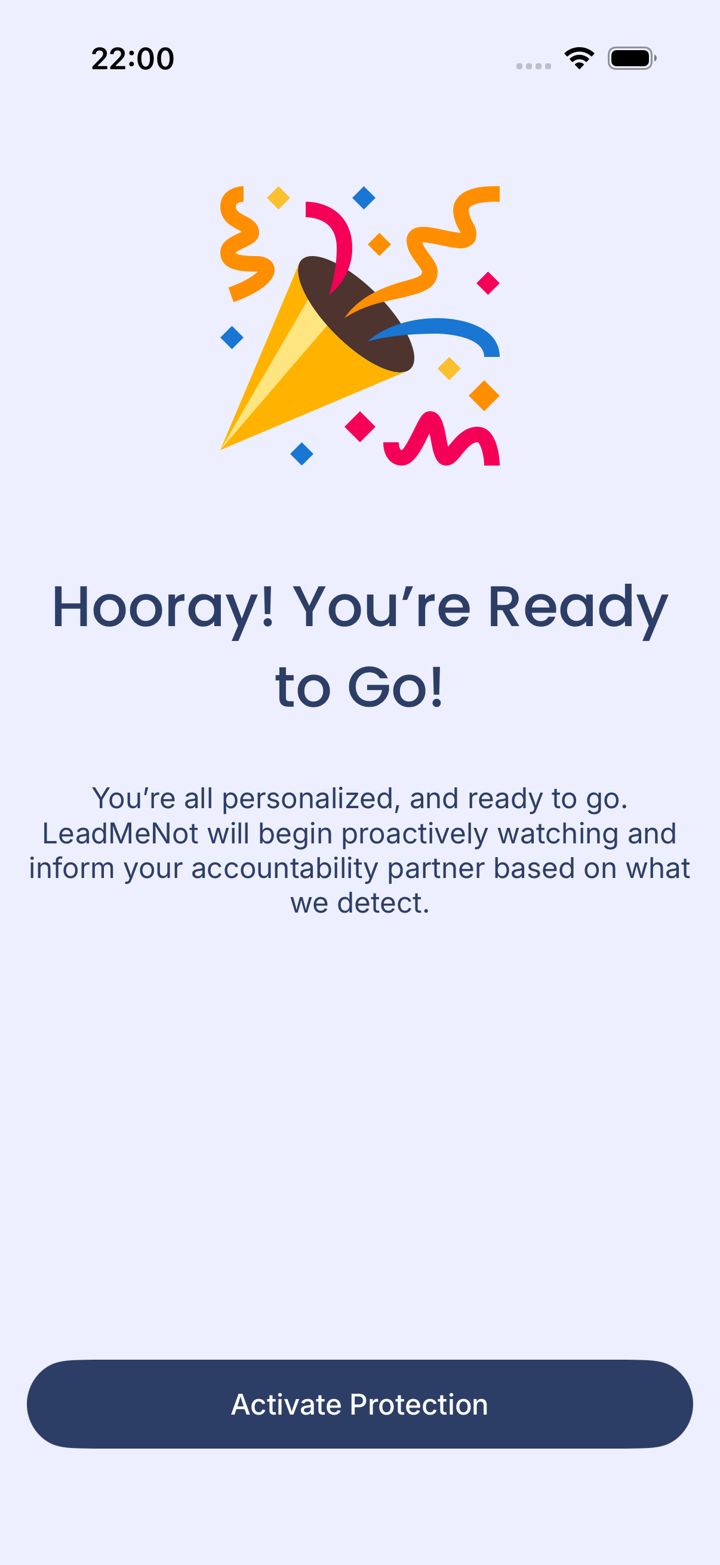
Step 13 of 17
Activate protection
Tap Activate Protection.
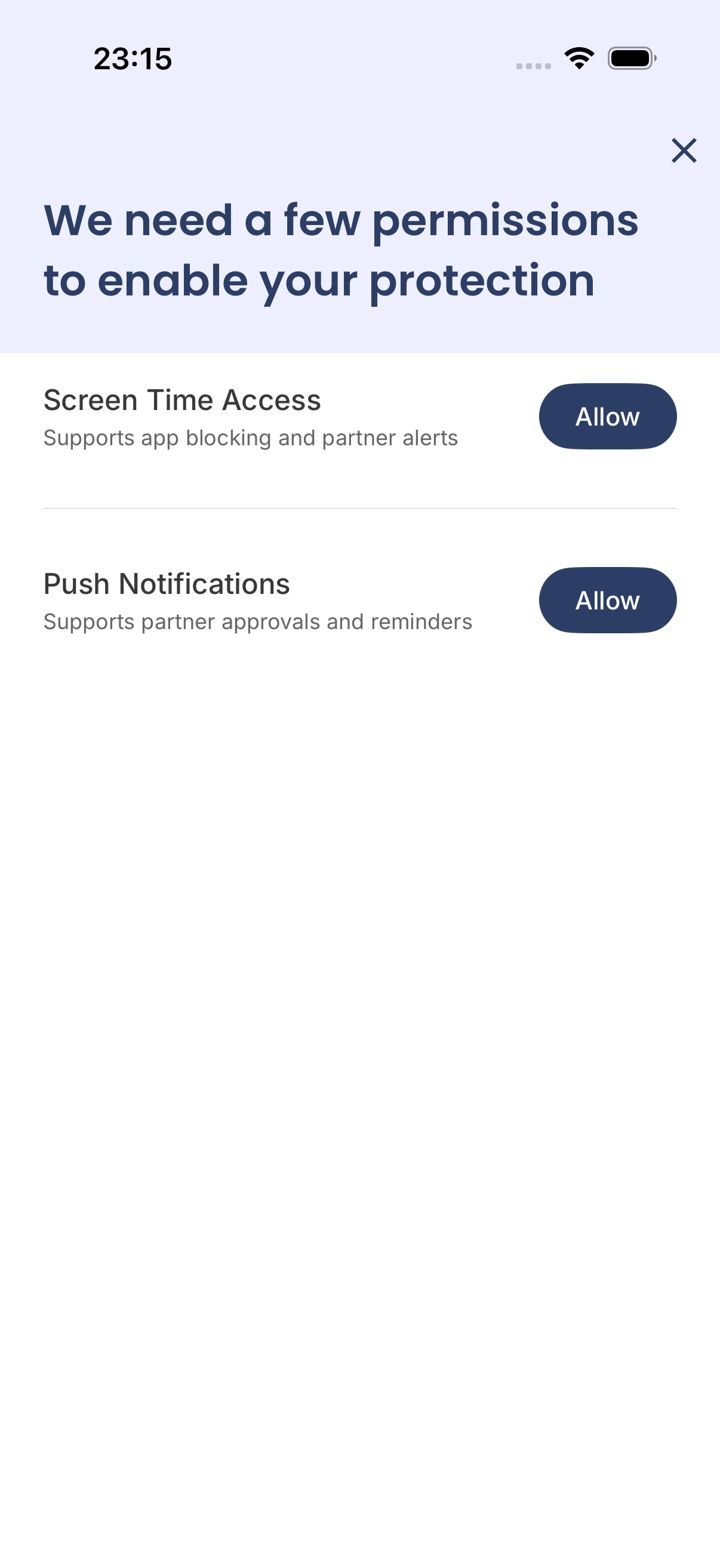
Step 14 of 17
Allow the permissions
Tap Allow next to Screen Time Access and Push Notifications.
Without Screen Time Access we can't block apps on iPhone. Without notifications, partner approvals won't reach you.
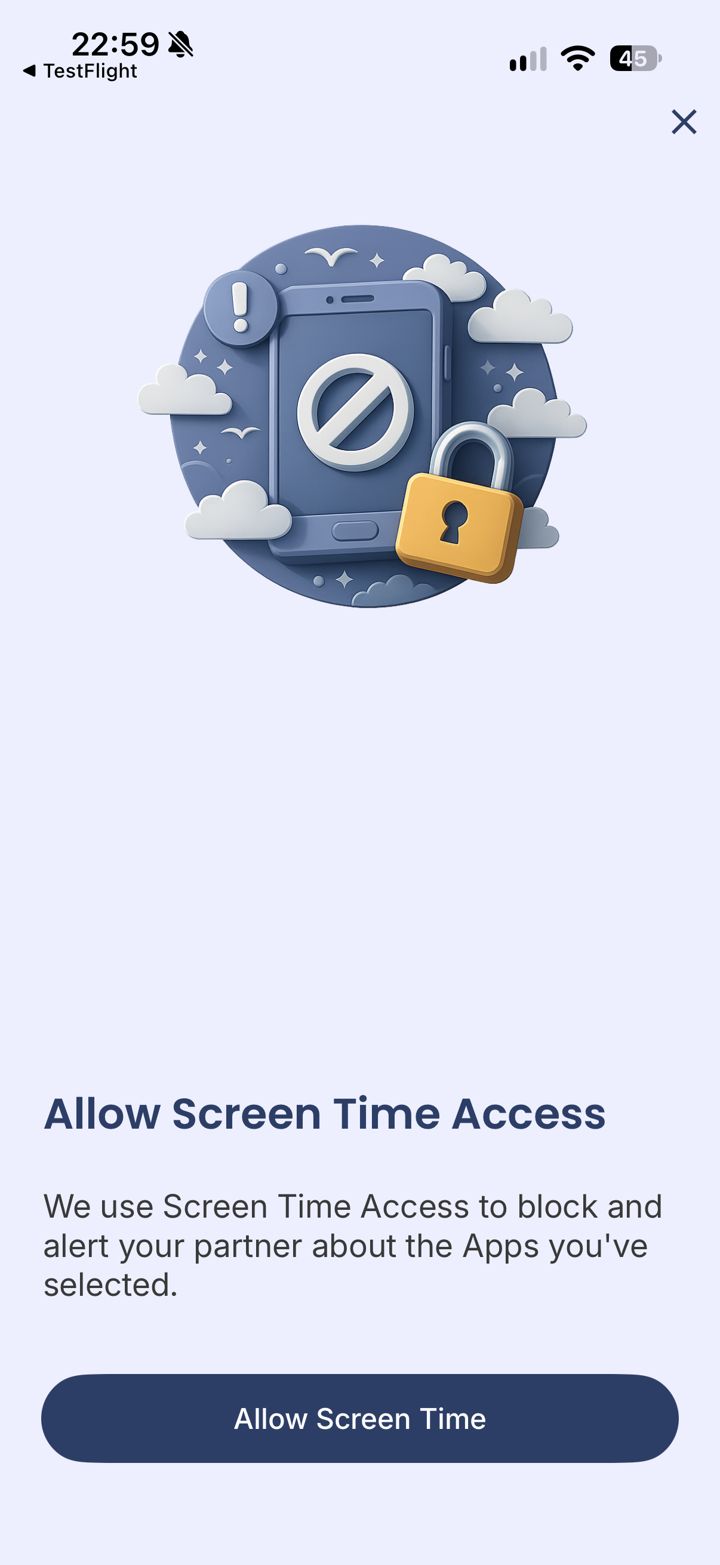
Step 15 of 17
Confirm Screen Time access
Tap Allow Screen Time, then confirm with Face ID or your passcode.
Safari
Step 16 of 17
Test it: type leadmenottest
Open Safari, type leadmenottest into the address bar and go. If LeadMeNot blocks the page, everything is working.
Not blocked? Every permission has to be on. Check the Safari Extension is switched on, with no red message under You › Protection Settings (or VPN protection, if you use that instead), Screen Time access is allowed, and the Blocker says Active on Block & Monitor.
The test only works while blocking is on, for example with Adult Websites & Apps switched on.
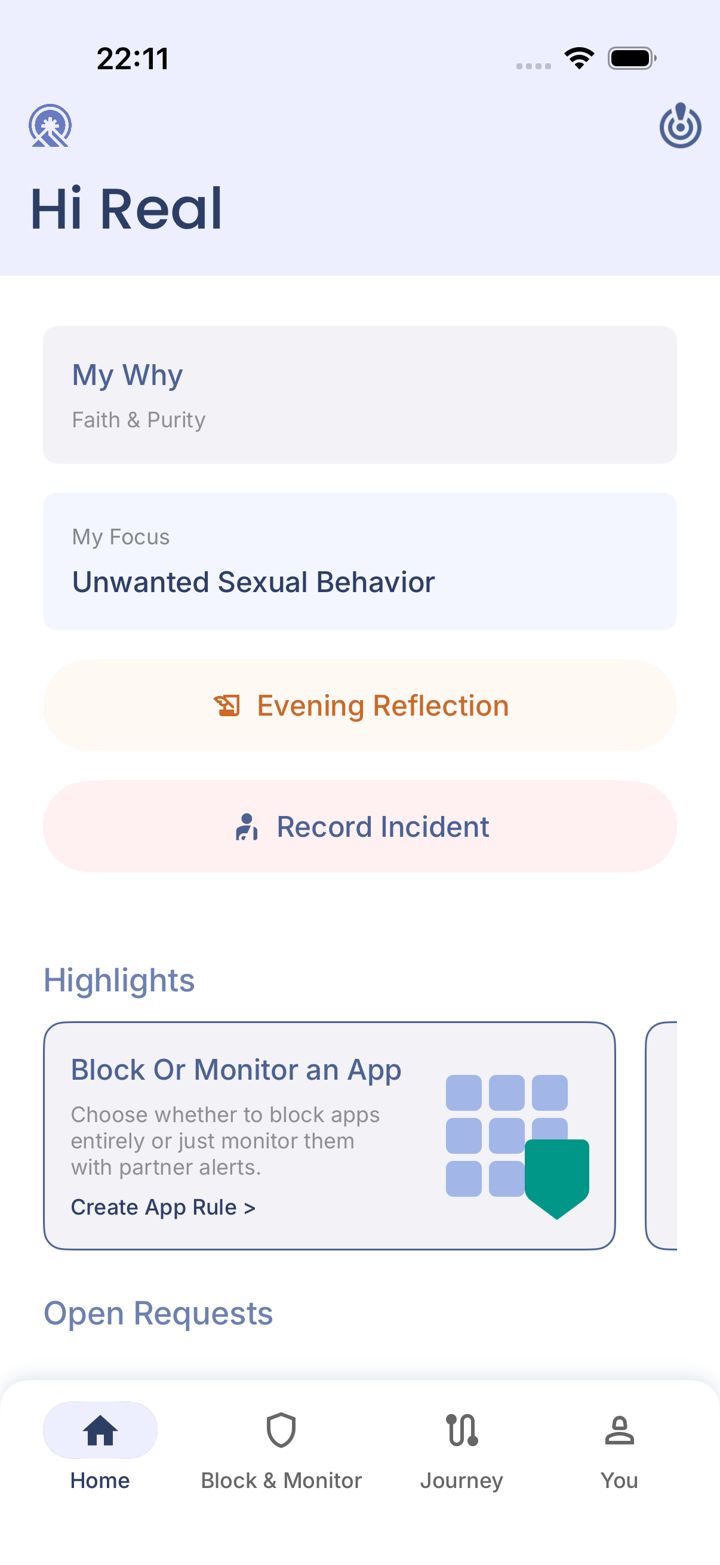
Step 17 of 17
You're protected
You'll land on the Home tab. Next, add an accountability partner so you're not doing this alone.
Did this work?
Great. Here's what people usually do next:
Sorry about that. Email Jason and we'll include which guide and step you were on, or ask our assistant.