
Windows · Limit or block apps & sites
Limit time on an app or website
Use it for a set amount of time each day, then it's blocked.
Step 1 of 8
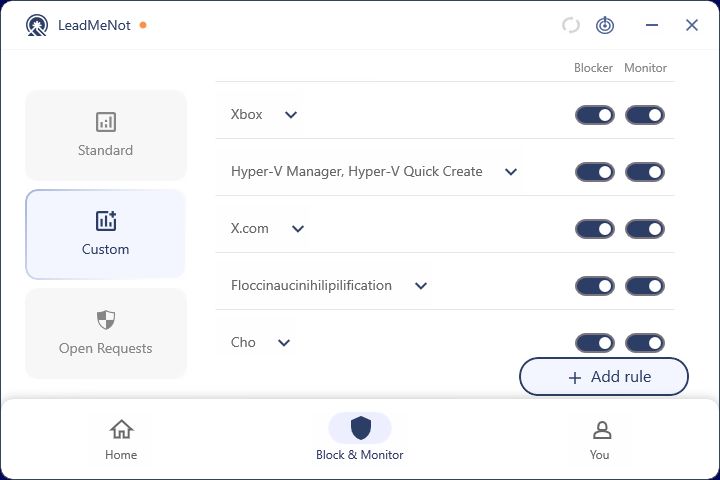
Open Block & Monitor › Custom, then Add rule
Click Block & Monitor, then Custom on the left, then Add rule.
Step 2 of 8
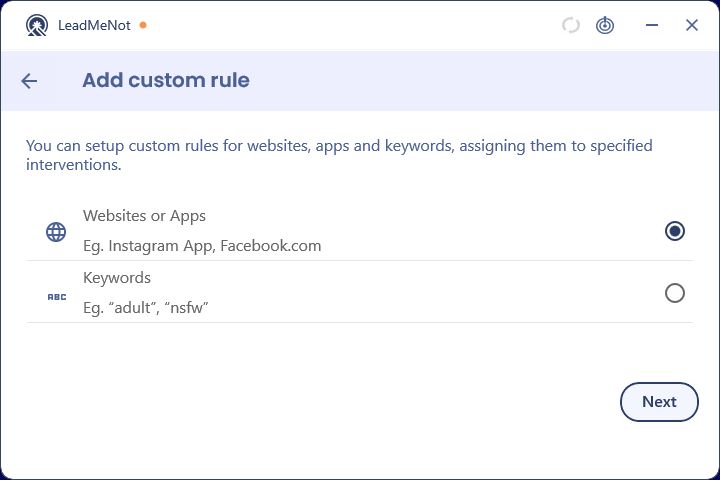
Choose Websites or Apps
Select Websites or Apps and click Next.
Step 3 of 8
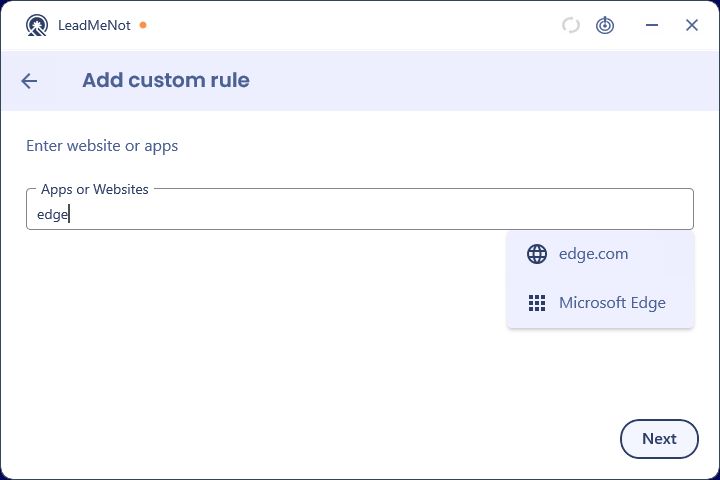
Type the website or app
Start typing. Websites appear with a globe, installed apps with a grid icon. Click the one you mean to add it as a chip. You can add several.
For a website, type the domain, like reddit.com. For an app, type its name as it appears on your computer.
Step 4 of 8
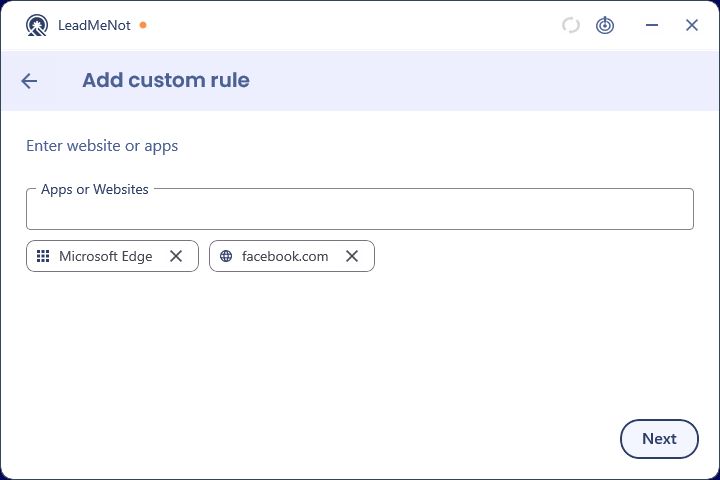
Check your chips, then Next
Each selected app or site shows as a chip. Click Next.
Step 5 of 8
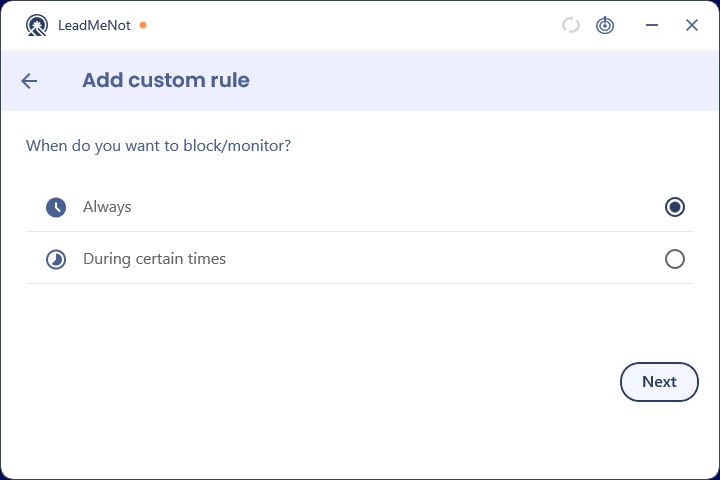
Keep Always
Leave Always selected and click Next.
Don't pick During certain times. That's a schedule, not a daily limit.
Step 6 of 8
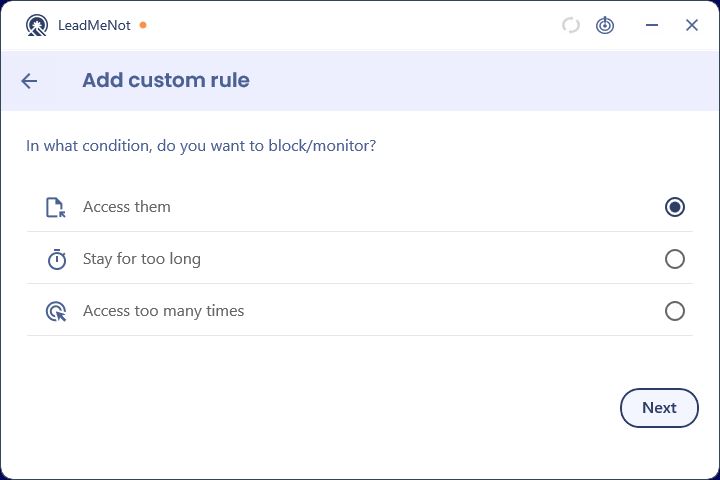
Choose Stay for too long
Select Stay for too long.
Step 7 of 8
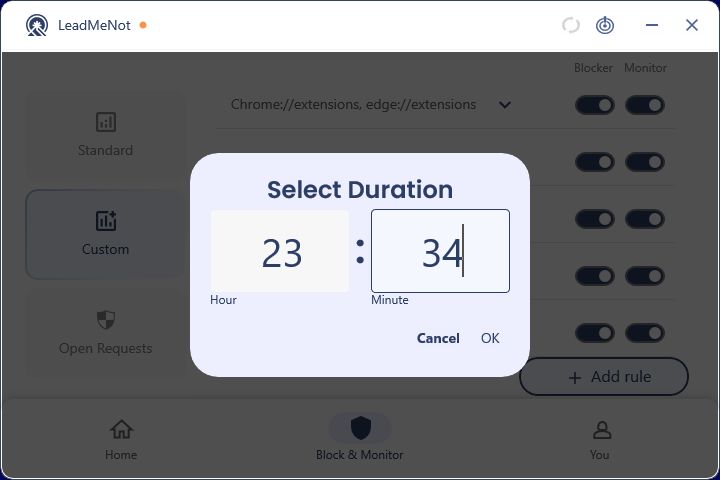
Set the daily limit
Enter the hours and minutes allowed per day and click OK, then Next.
Step 8 of 8
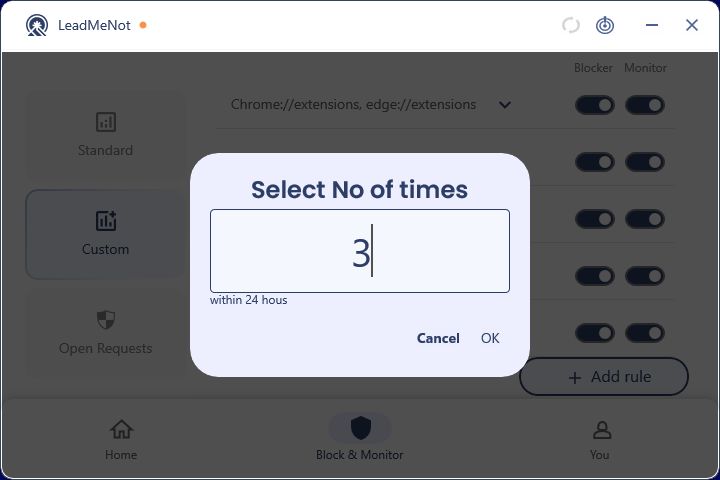
Or limit how many times
Alternatively, Access too many times lets you open it a set number of times in 24 hours. Enter the number and click OK.
Did this work?
Great. Here's what people usually do next:
Sorry about that. Email Jason and we'll include which guide and step you were on, or ask our assistant.