
iPhone & iPad · Get started
Join with an organization code
Your church, ministry or school gave you a code. Here's where it goes.
Why
Step 1 of 4
Before you start
Have the code from your church, ministry, school or group ready. It goes in on the very first screen, before you create an account.
Already tapped Get Started or created an account without the code? Email jason@leadmenot.org with the code and we'll apply it to your account.
Step 2 of 4
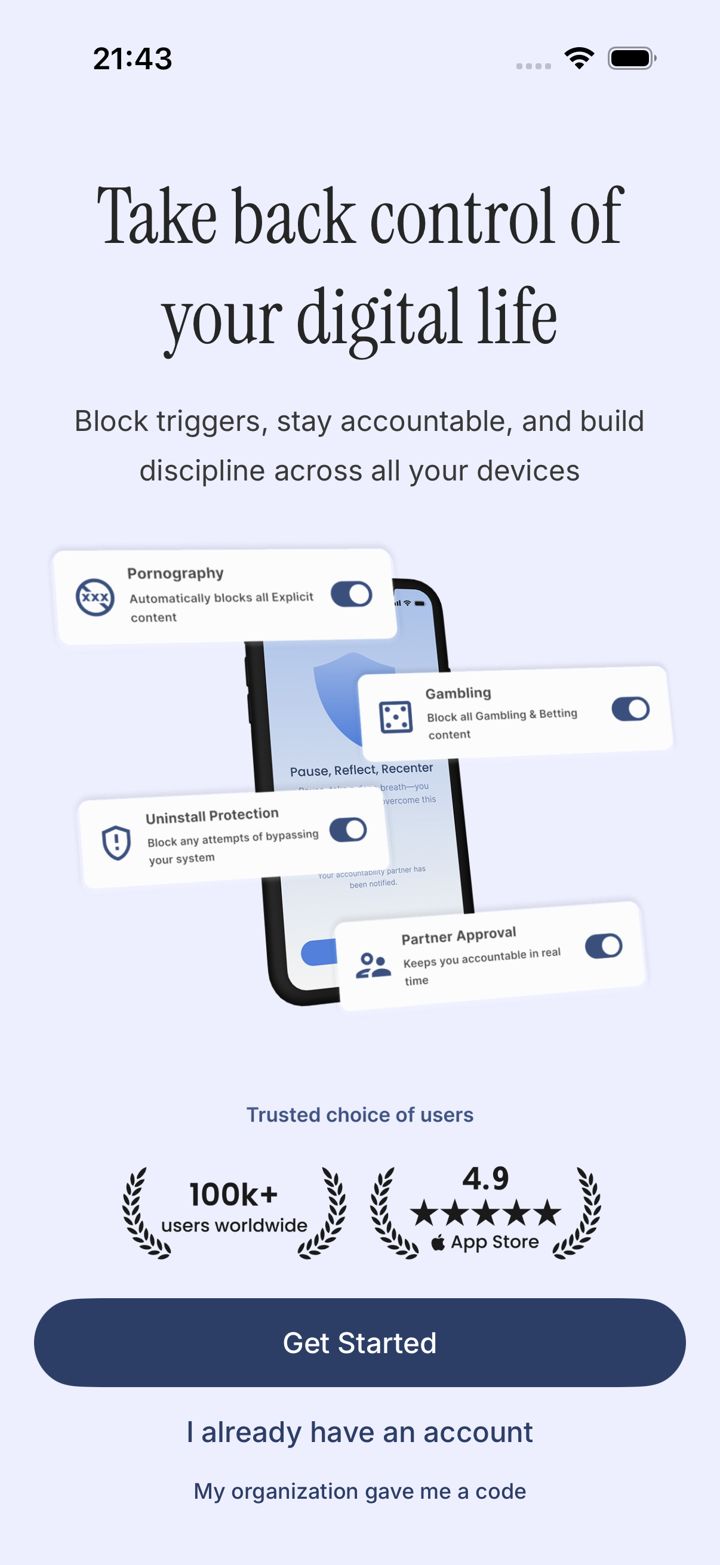
Tap My organization gave me a code
On the first screen, tap My organization gave me a code, just under the Get Started button.
Step 3 of 4
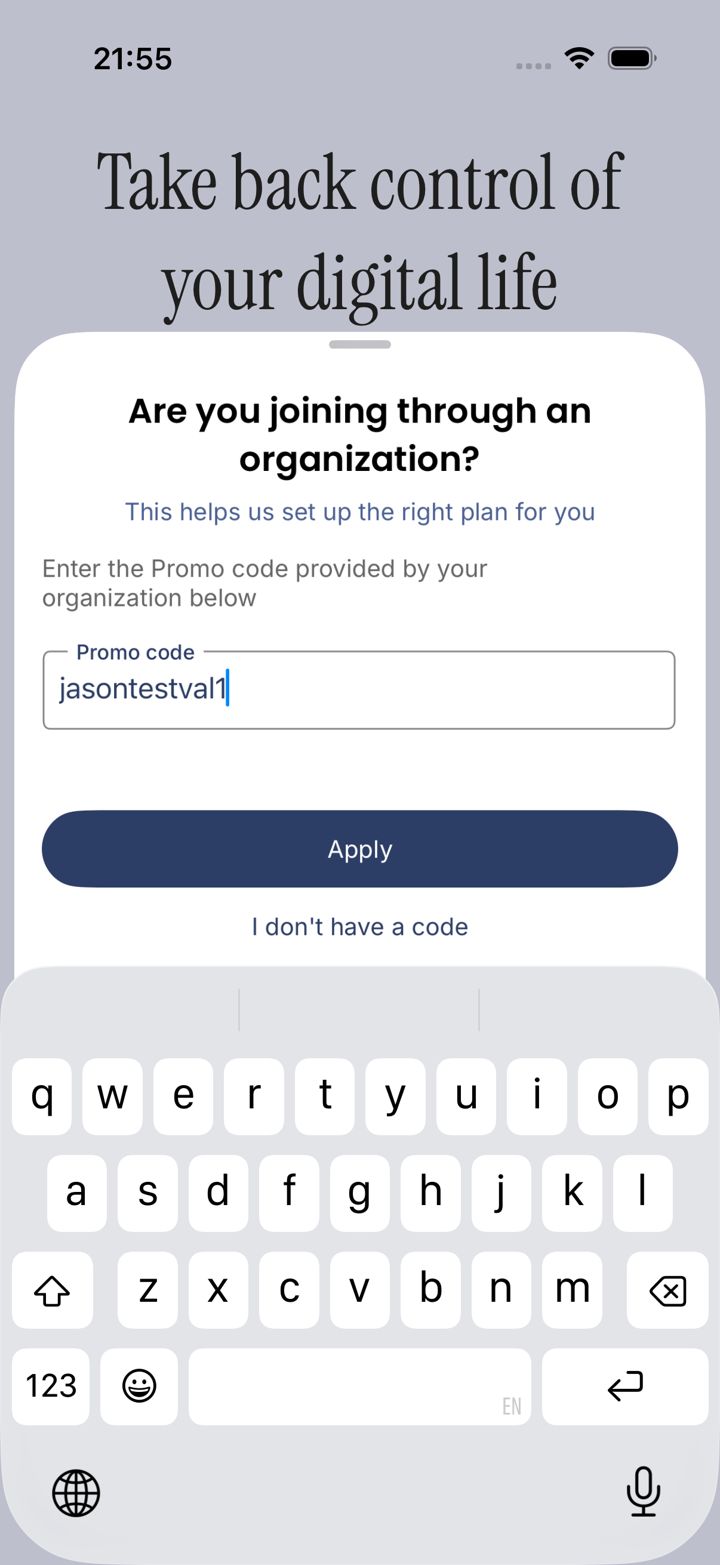
Enter your code
Type the code exactly as you were given it, then tap Apply.
Step 4 of 4
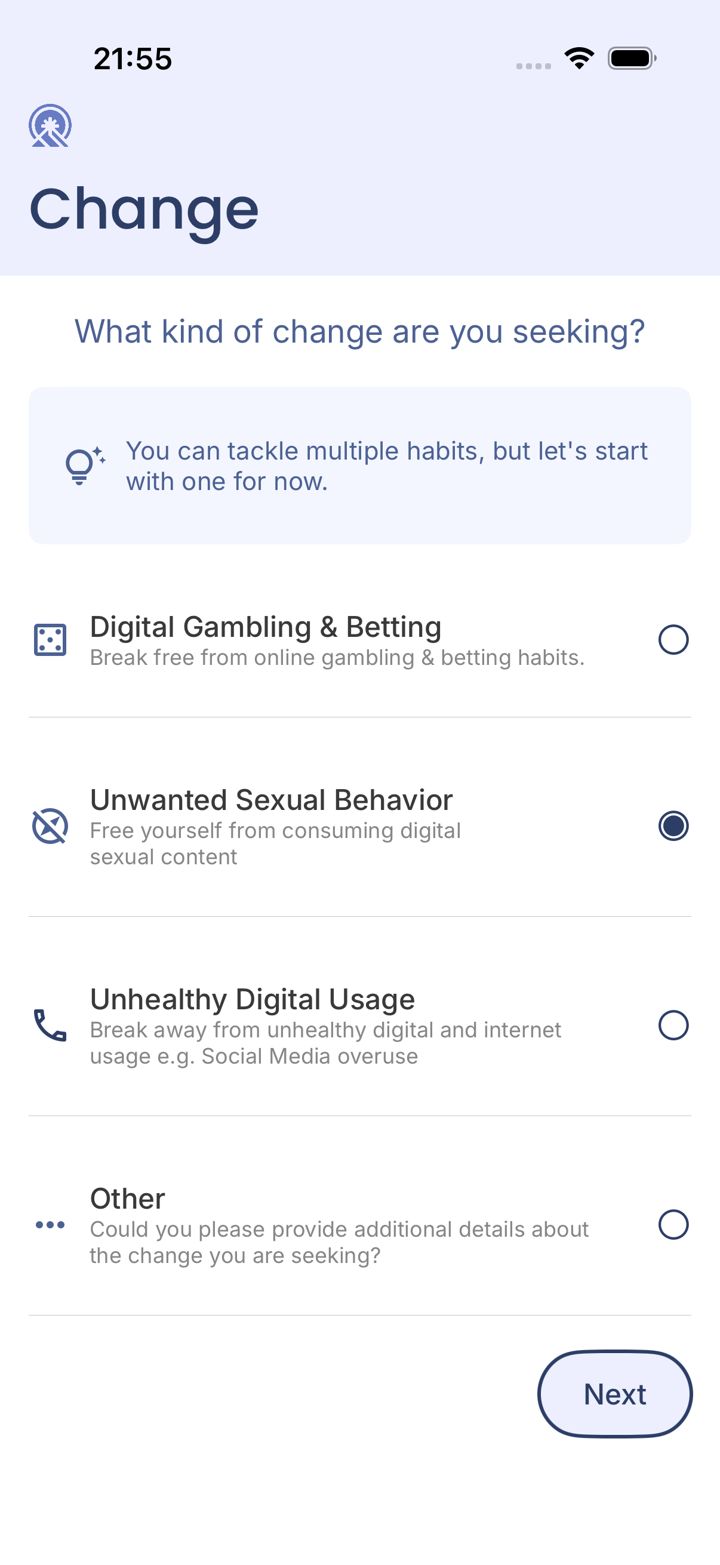
Carry on with setup
Your code is applied and you'll continue with the setup questions. Your organization's code covers your plan, so you won't see a payment screen.
Code not working? Check for typos, then email jason@leadmenot.org with the code and your organization's name.
Did this work?
Great. Here's what people usually do next:
Sorry about that. Email Jason and we'll include which guide and step you were on, or ask our assistant.