
iPhone & iPad · Limit or block apps & sites
Limit time on an app
Use Instagram, TikTok or YouTube for a set amount of time, then get blocked.
Step 1 of 10
What do you want to happen?
Picking the right one now is the most important step. People who skip this often end up blocking the app completely.
Step 2 of 10
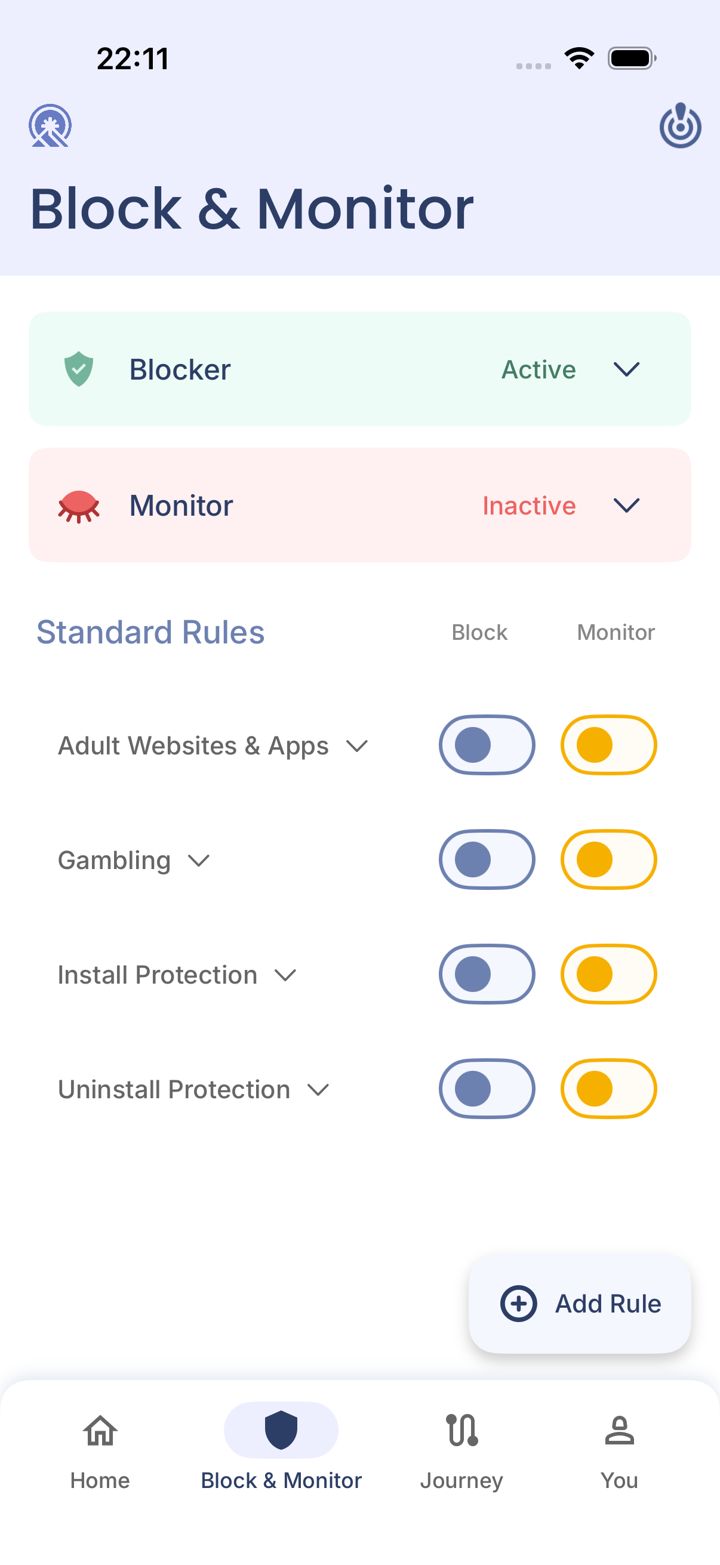
Open the Block & Monitor tab
Tap Block & Monitor in the bar at the bottom of the app.
Step 3 of 10
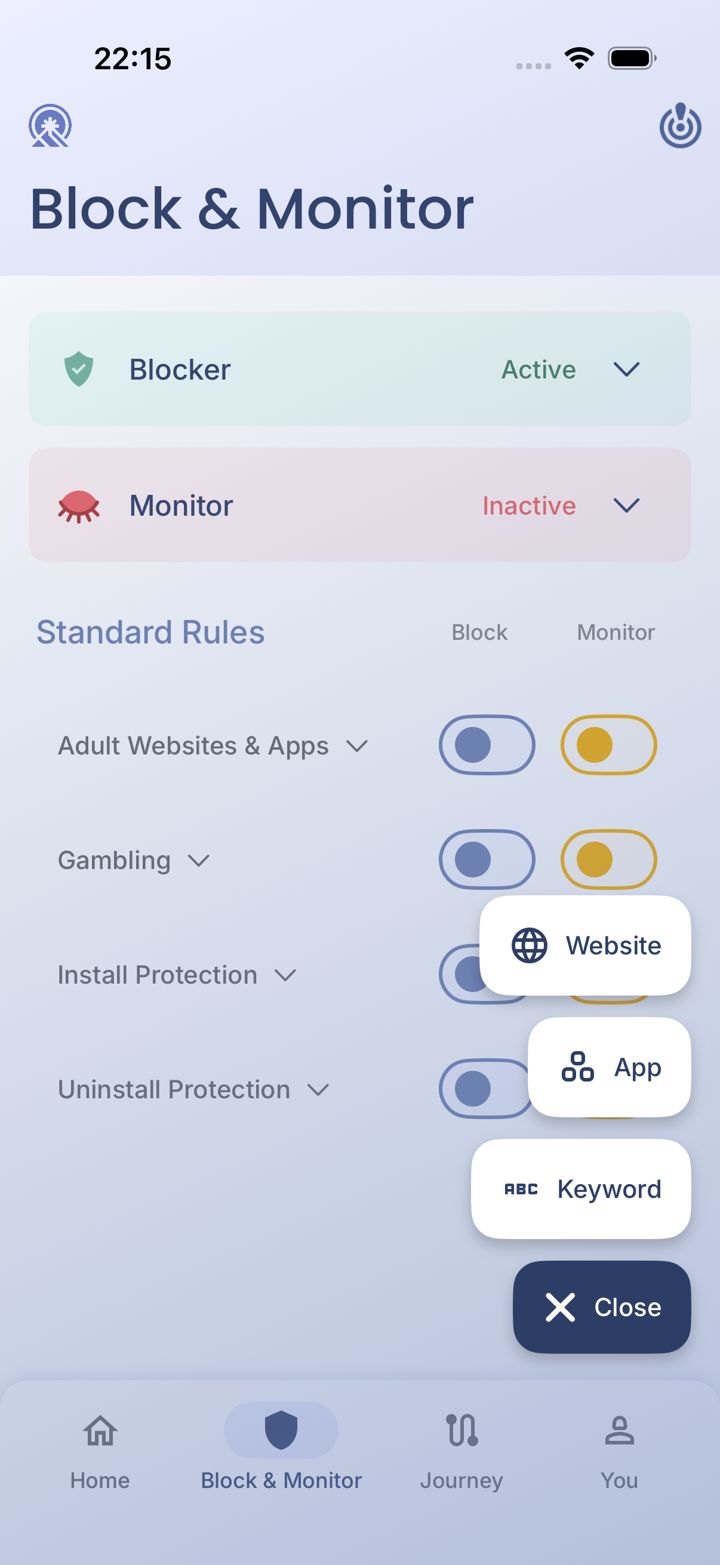
Tap Add Rule
Tap Add Rule in the bottom right corner. A small menu opens.
Step 4 of 10
Choose App
Tap App.
Step 5 of 10
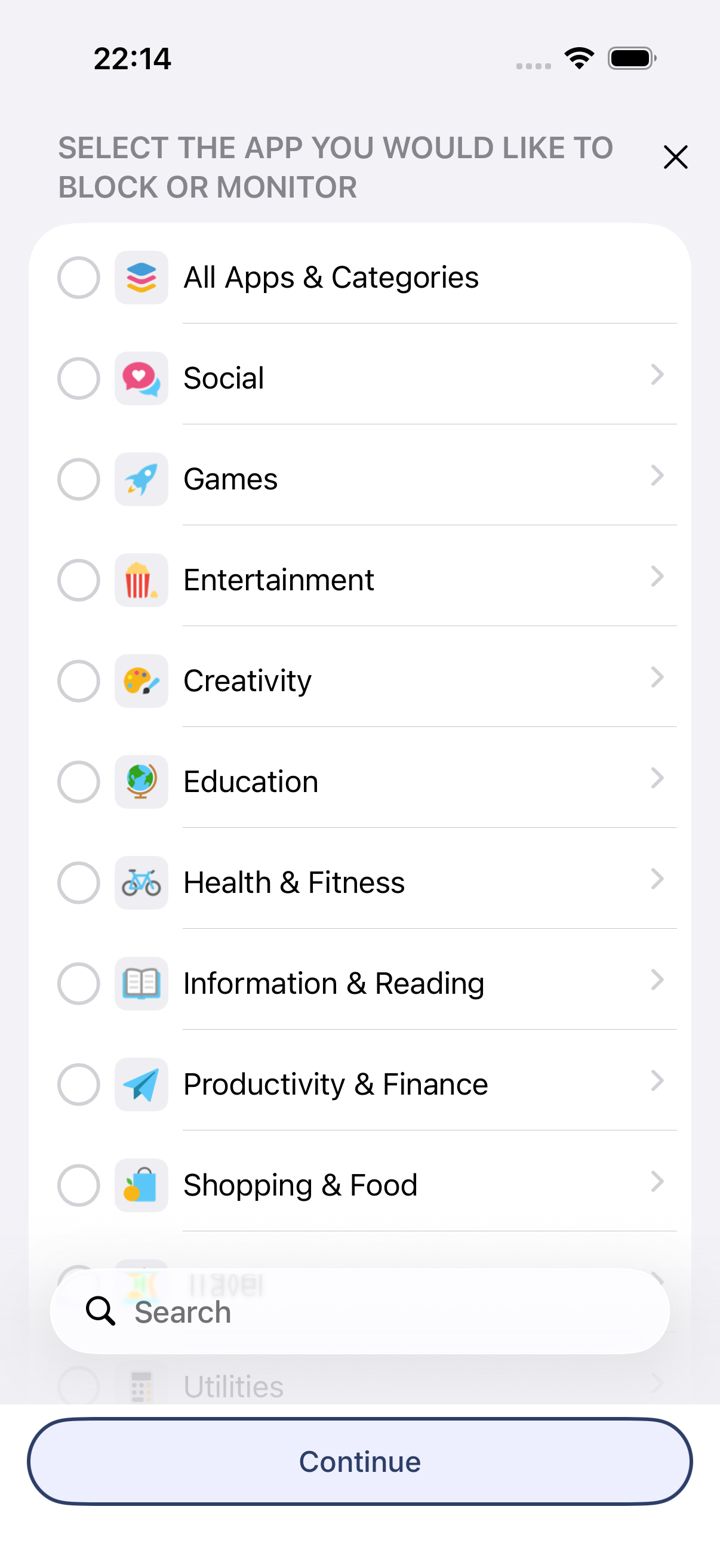
Open the category your app is in
Find the category that holds the app you want to limit (Instagram and TikTok are under Social). Tap the arrow on the right of that row to open it.
Don't tap the circle next to the category name, and don't choose All Apps & Categories. Either one selects every app in it, which blocks far more than you meant to.
LeadMeNot · app picker
Step 6 of 10
Select just your app, then tap Continue
Inside the category, tick the app you want to limit only, then tap Continue at the bottom. Use Search if you can't find it.
Step 7 of 10
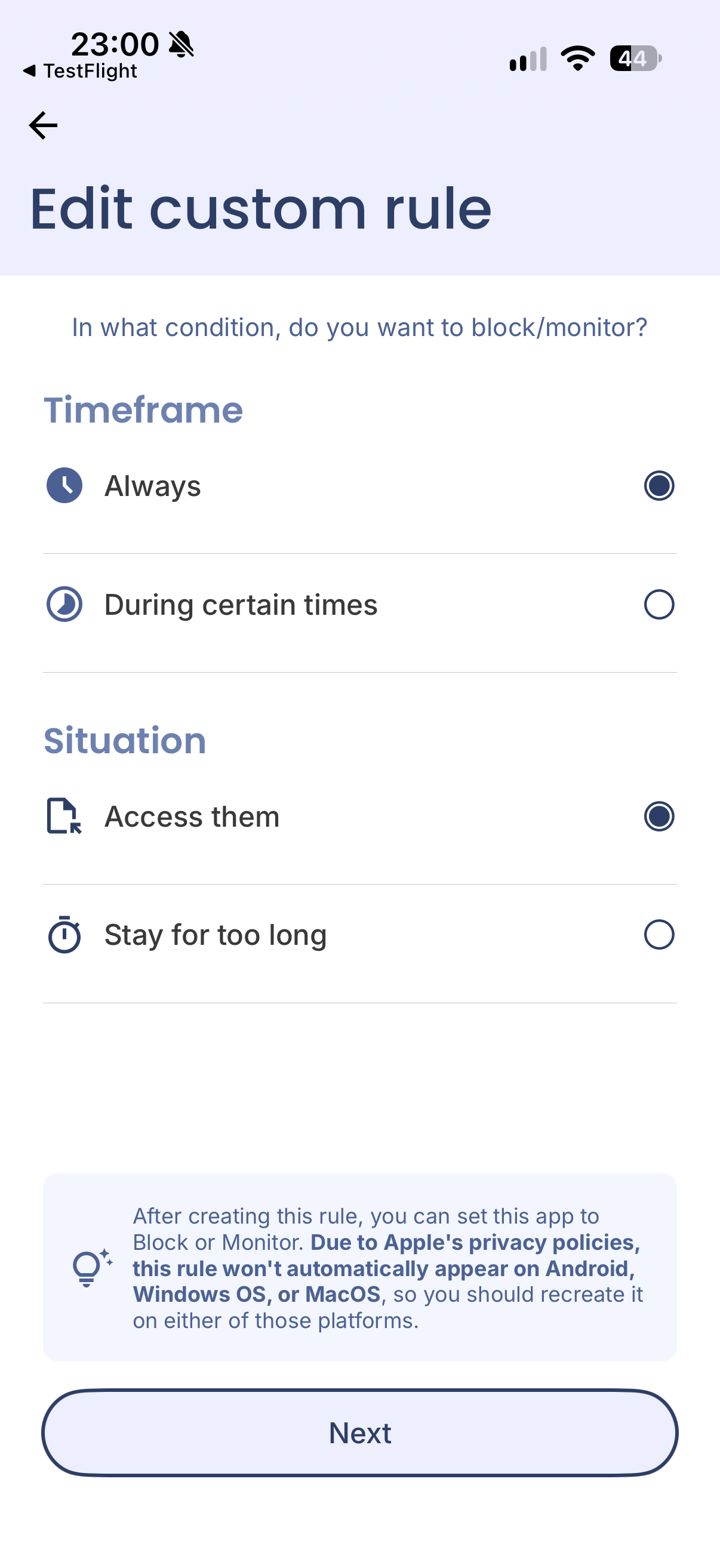
Choose Stay for too long
Under Situation, tap Stay for too long. This lets you use the app for a set time before it's blocked.
Access them blocks the app the moment the rule is on. During certain times is a schedule, not a daily limit.
LeadMeNot · Edit custom rule
Step 8 of 10
Set your time limit, then tap Next
Choose how long you can use the app before it's blocked, then tap Next.
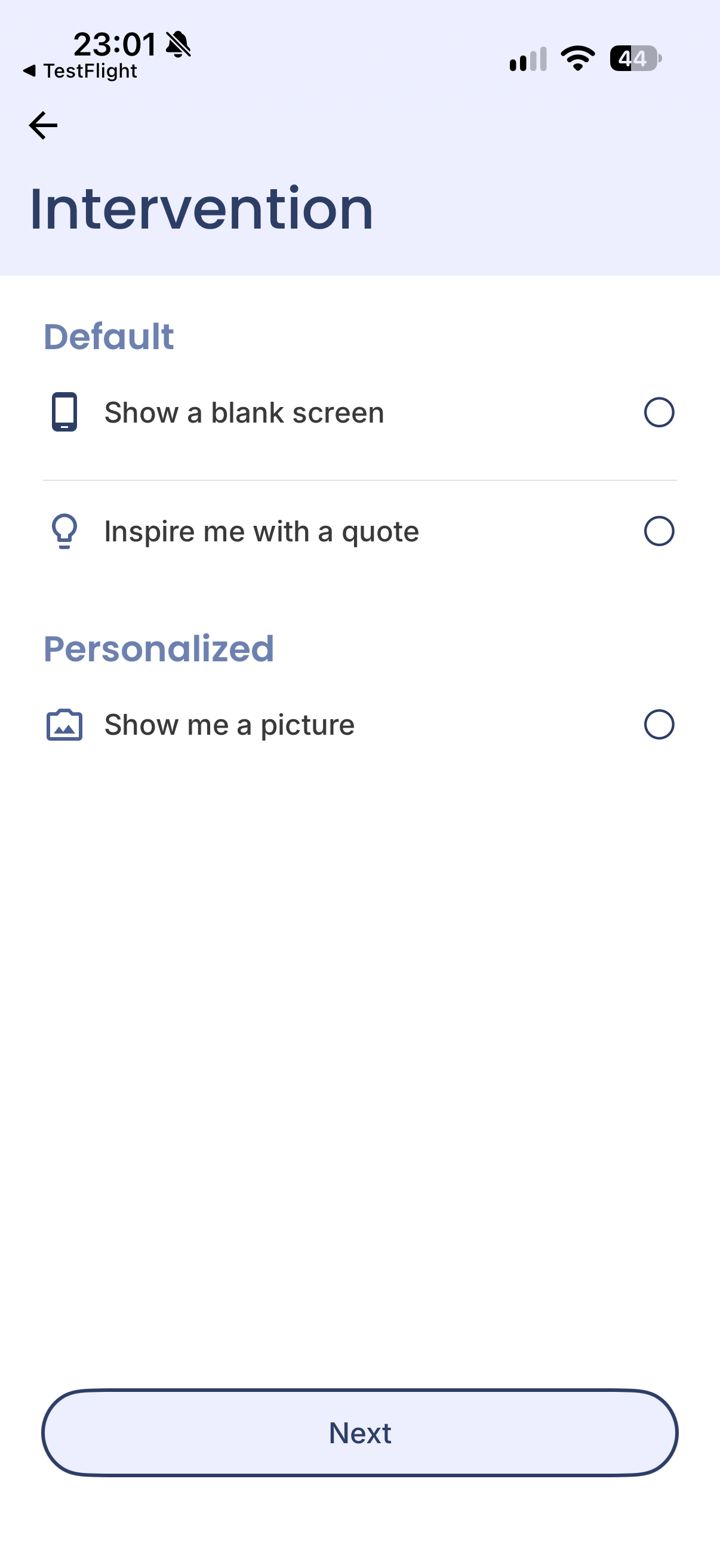
Step 9 of 10
Choose what you see when it's blocked
Pick a blank screen, an inspiring quote, or a picture you choose. Then tap Next.
A personal picture (your family, a goal) is often the most effective reminder in a weak moment.
LeadMeNot · Block & Monitor
Step 10 of 10
Your rule is on
You'll see your new rule on the Block & Monitor tab. Check that Block is switched on for it, and switch on Monitor too if you want your partner told when you hit it.
Rules you make on iPhone stay on iPhone. Because of Apple's privacy rules they don't copy to Android, Windows or Mac, so recreate them there if you need them.
Did this work?
Great. Here's what people usually do next:
Sorry about that. Email Jason and we'll include which guide and step you were on, or ask our assistant.