
iPhone & iPad · Change or allow something
Allow a website that's being blocked
Whitelist a site you need, like your bank or church, if it's caught by mistake.
Step 1 of 6
Is it caught by our list, or by a rule you made?
If you made a rule for it, edit or remove that rule. If a site is wrongly caught by our built-in list, whitelist it here and tell us so we can fix the list.
Step 2 of 6
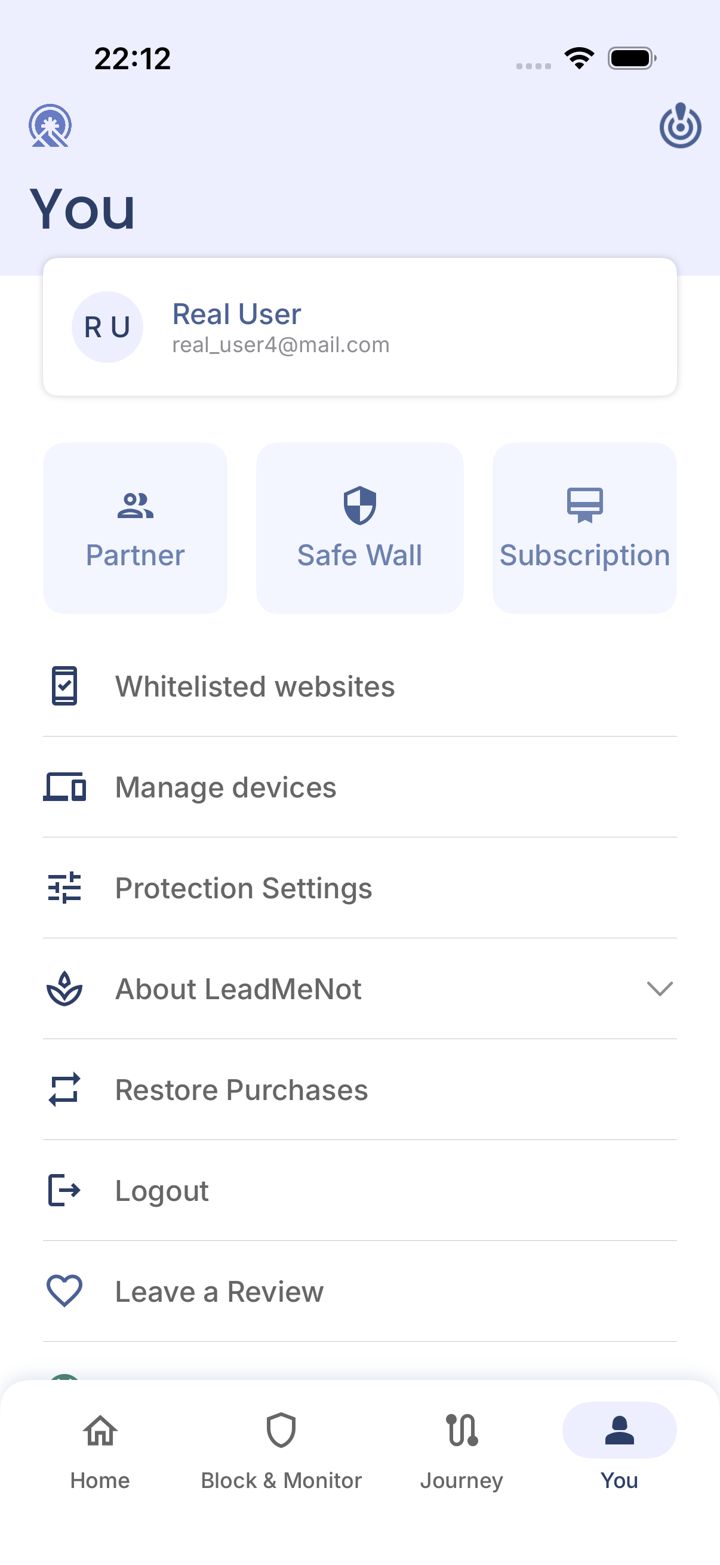
Open the You tab
Tap You in the bottom right of the app.
Step 3 of 6
Tap Whitelisted websites
Tap Whitelisted websites.
Step 4 of 6
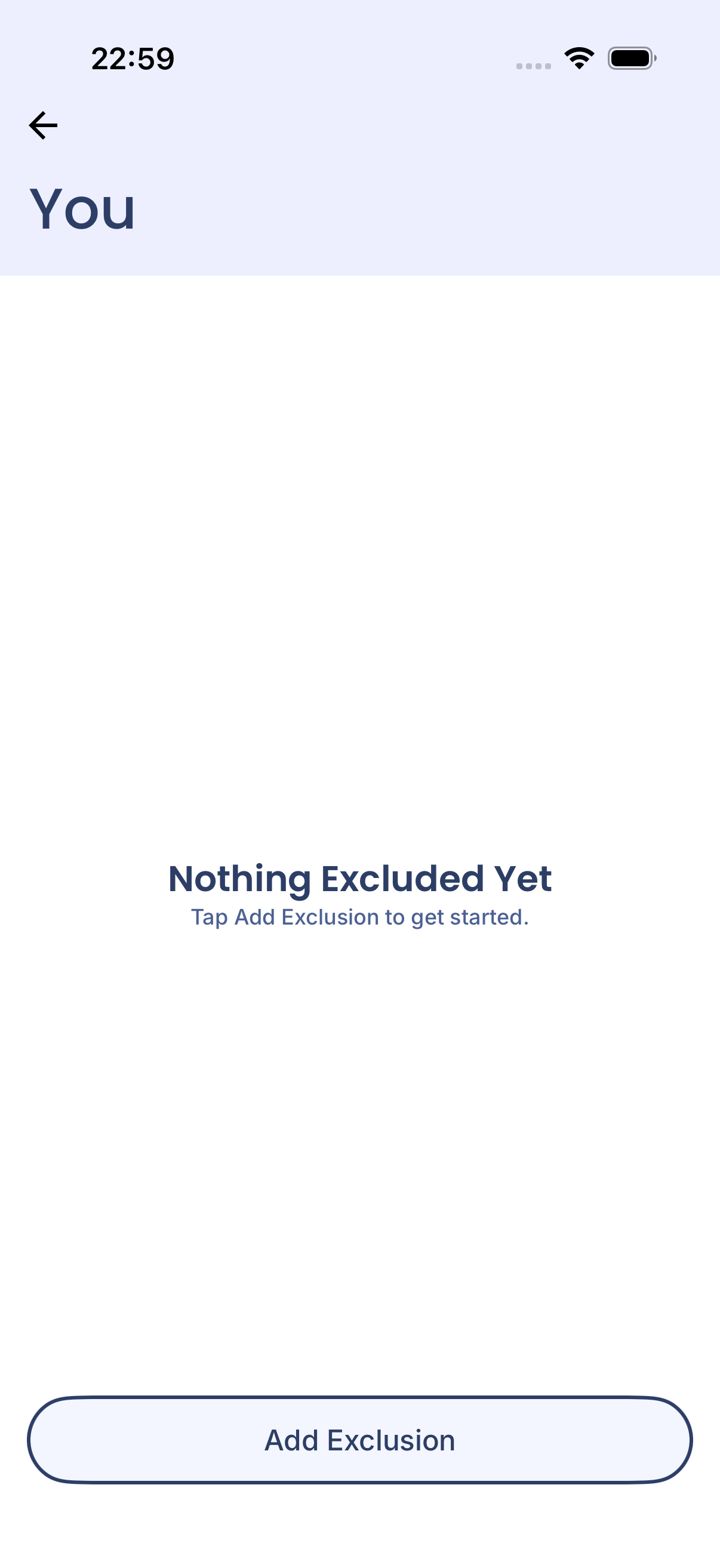
Tap Add Exclusion
Tap Add Exclusion at the bottom.
Step 5 of 6
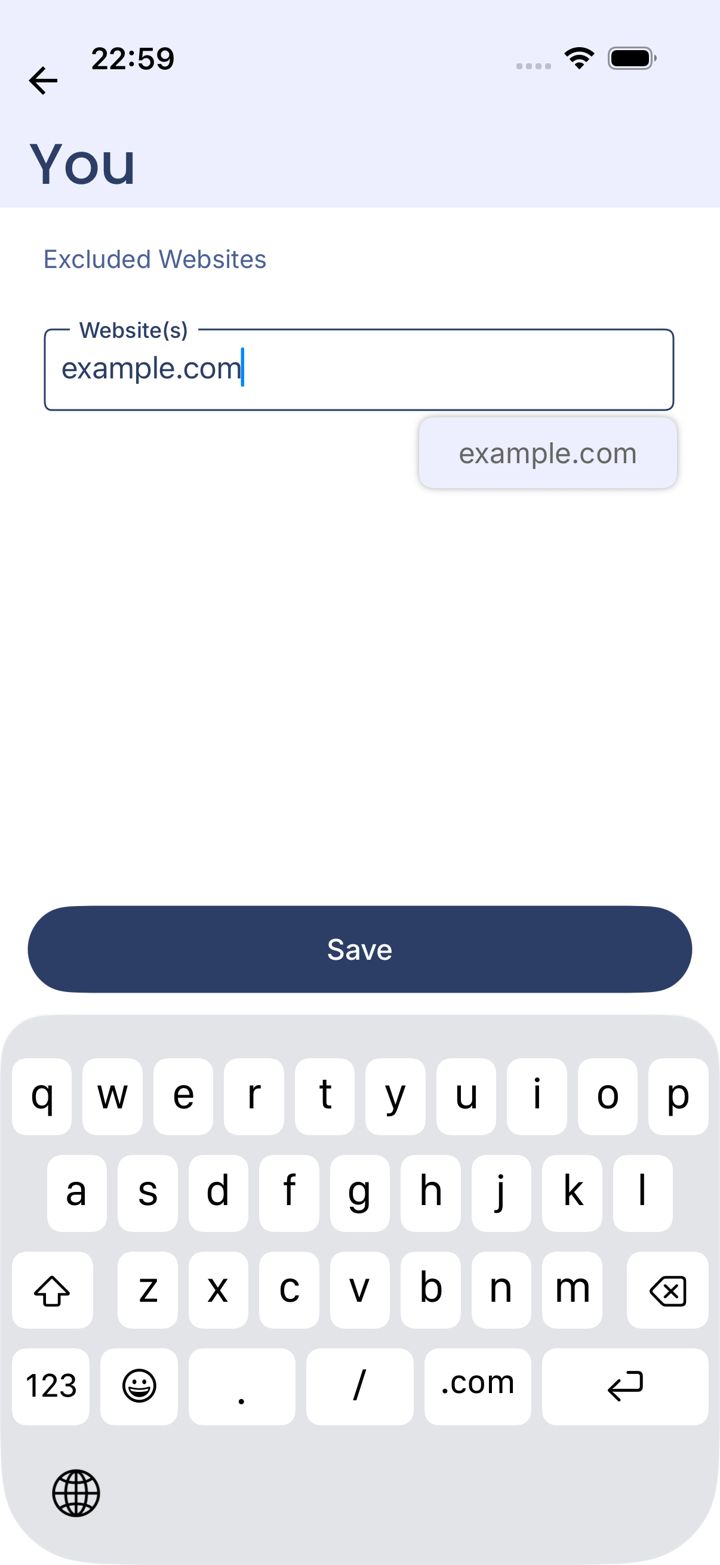
Enter the site and save
Type the address, like mybank.com, then tap Save.
Step 6 of 6
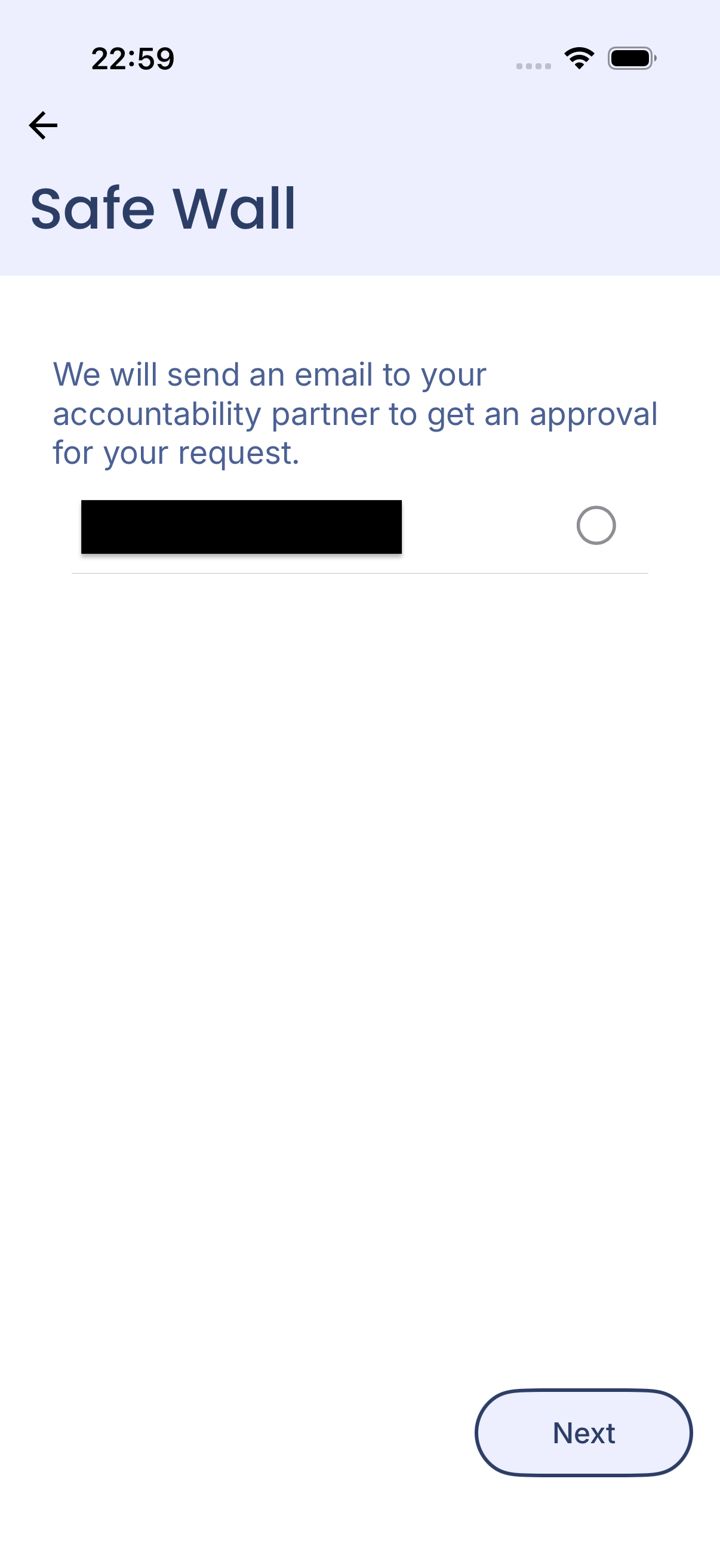
Pass your Safe Wall
Adding a whitelist goes through your Safe Wall: pick your partner and tap Next, or wait out your timer.
Can't reach your partner? Email jason@leadmenot.org and Jason can approve it.
Did this work?
Great. Here's what people usually do next:
Sorry about that. Email Jason and we'll include which guide and step you were on, or ask our assistant.