Windows · Change or allow something
Approved change not showing (“no such trigger block”)
Your partner approved it, but your computer still shows the old rule. Here's how to apply it.
Not on Windows? iPhone & iPad · Android · Mac · Chromebook
LeadMeNot
Step 1 of 5
Seeing “there is no such trigger block”?
It means the rule you're trying to change is already gone: your partner approved deleting it, but this computer hasn't applied the change yet. The same thing makes an approved change look like it never happened.
Windows
Step 2 of 5
Click the Request Approved notification
When your partner approves, Windows shows a Request Approved! notification. Click it: LeadMeNot opens and applies the change.
Step 3 of 5
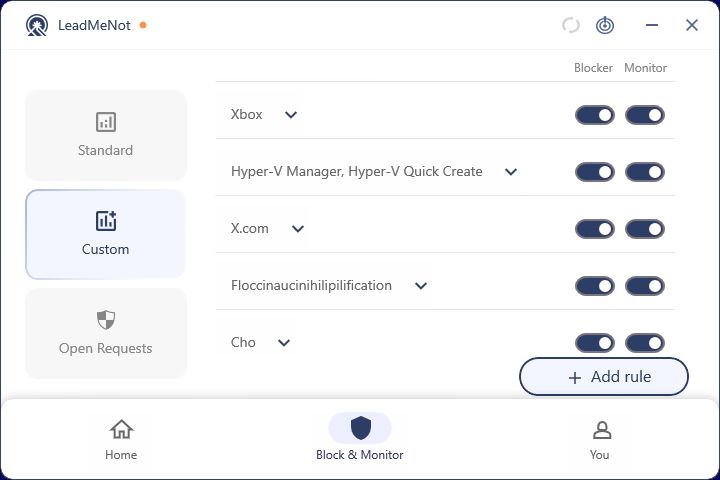
Missed it? Press Refresh
Click the Refresh button, the circular arrows at the top of the LeadMeNot window. It syncs and applies everything that's been approved.
Changes that need your partner's OK, like editing or deleting a rule, only apply on a computer after you click the notification or press Refresh.
Windows
Download for WindowsStep 4 of 5
Make sure you're up to date
Older versions can miss approved changes. Install the latest version of LeadMeNot for Windows.
LeadMeNot
Step 5 of 5
Then try again
Your rules now match what your partner approved. Still seeing the message? Email jason@leadmenot.org with a screenshot.
Did this work?
 That's a real step.
Your protection is set. If you've added a partner, they've got your back, so you're never doing this alone. Here's what people usually do next:
Sorry about that. Email Jason and we'll include which guide and step you were on, or ask our assistant.