
Windows · Limit or block apps & sites
Block an app or website
Stop a site or program from opening at all.
Step 1 of 7
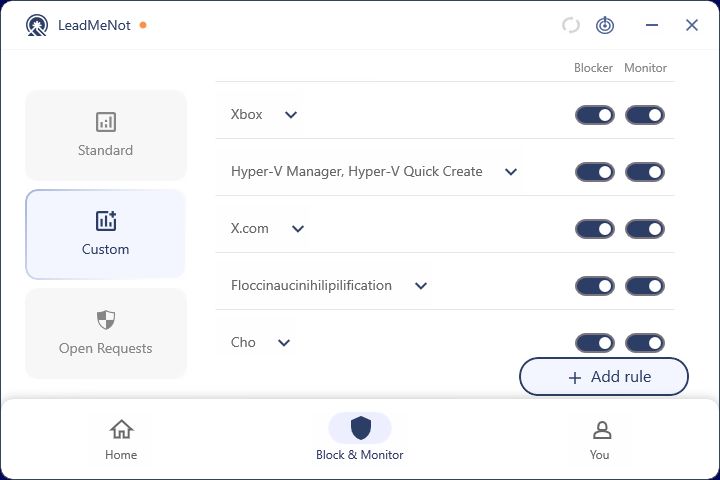
Open Block & Monitor › Custom, then Add rule
Click Block & Monitor, then Custom on the left, then Add rule.
Step 2 of 7
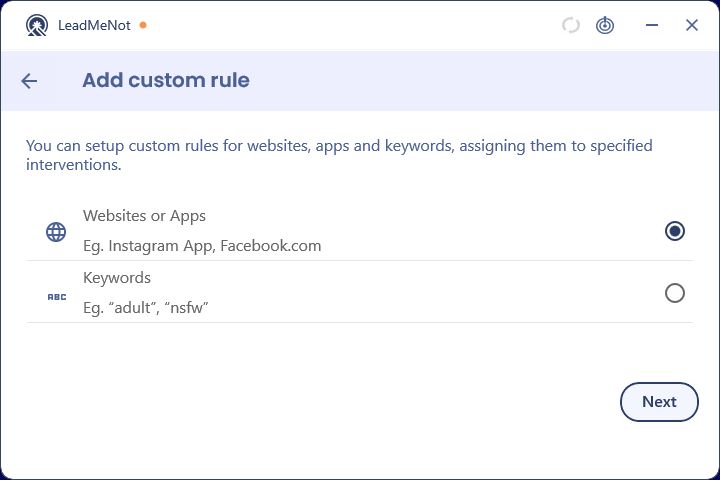
Choose Websites or Apps
Select Websites or Apps and click Next.
Step 3 of 7
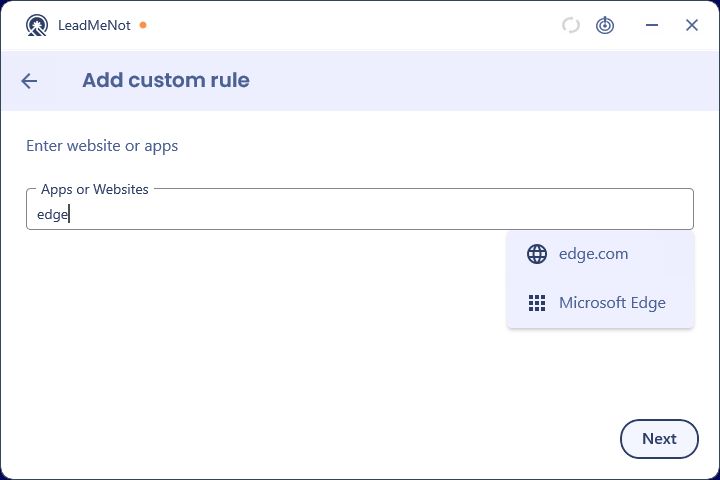
Type the website or app
Start typing. Websites appear with a globe, installed apps with a grid icon. Click the one you mean to add it as a chip. You can add several.
For a website, type the domain, like reddit.com. For an app, type its name as it appears on your computer.
Step 4 of 7
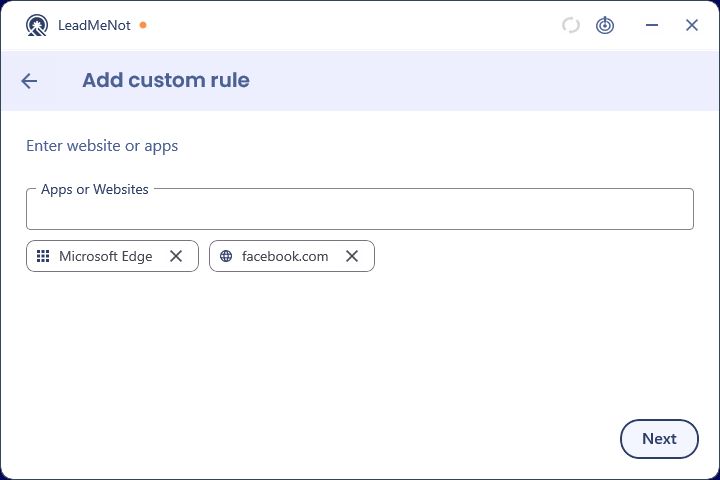
Check your chips, then Next
Each selected app or site shows as a chip. Click Next.
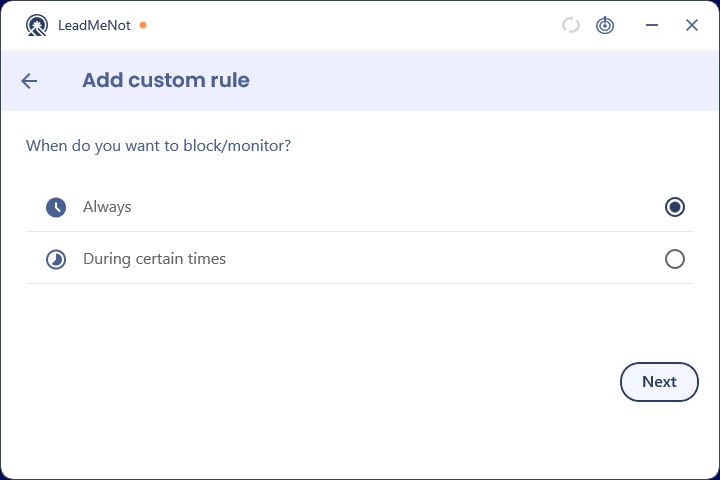
Step 5 of 7
Keep Always
Leave Always selected and click Next.
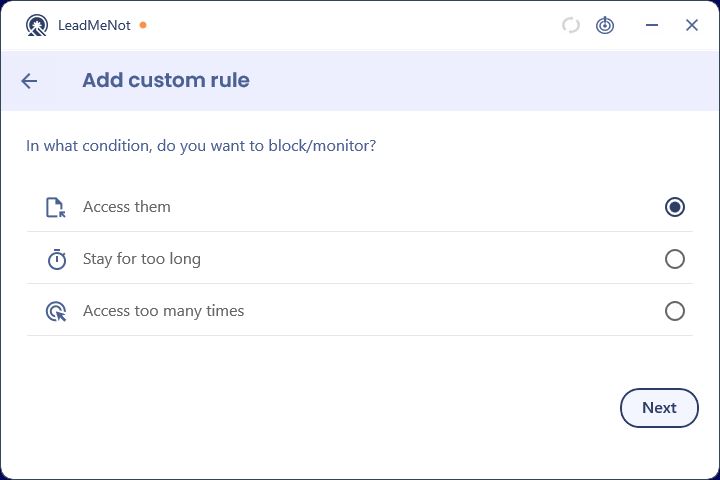
Step 6 of 7
Keep Access them
Leave Access them selected and click Next. The rule blocks the moment the app or site opens.
Stay for too long gives a daily time limit instead. Access too many times allows a set number of opens per day.
Step 7 of 7
Your rule is on
It's listed under Custom with its own Block and Monitor switches. Click the arrow to see its timer and intervention, the pencil to edit it, or the bin to delete it.
Did this work?
Great. Here's what people usually do next:
Sorry about that. Email Jason and we'll include which guide and step you were on, or ask our assistant.