iPhone & iPad · Limit or block apps & sites
Block every app except a few (Allow only)
Lock your phone down to just the apps you need, all the time or at set hours like bedtime.
Not on iPhone & iPad? Android · Windows · Mac · Chromebook
Why
Step 1 of 13
How Allow only works
A normal app rule blocks the apps you pick. Allow only specific apps does the opposite: every app is blocked except the ones you pick. It's great for bedtime or the hours that are hardest for you. You can run it all the time or only at certain times.
Want to block just one or two apps instead? Use Block an app completely or Block an app at certain hours.
Step 2 of 13
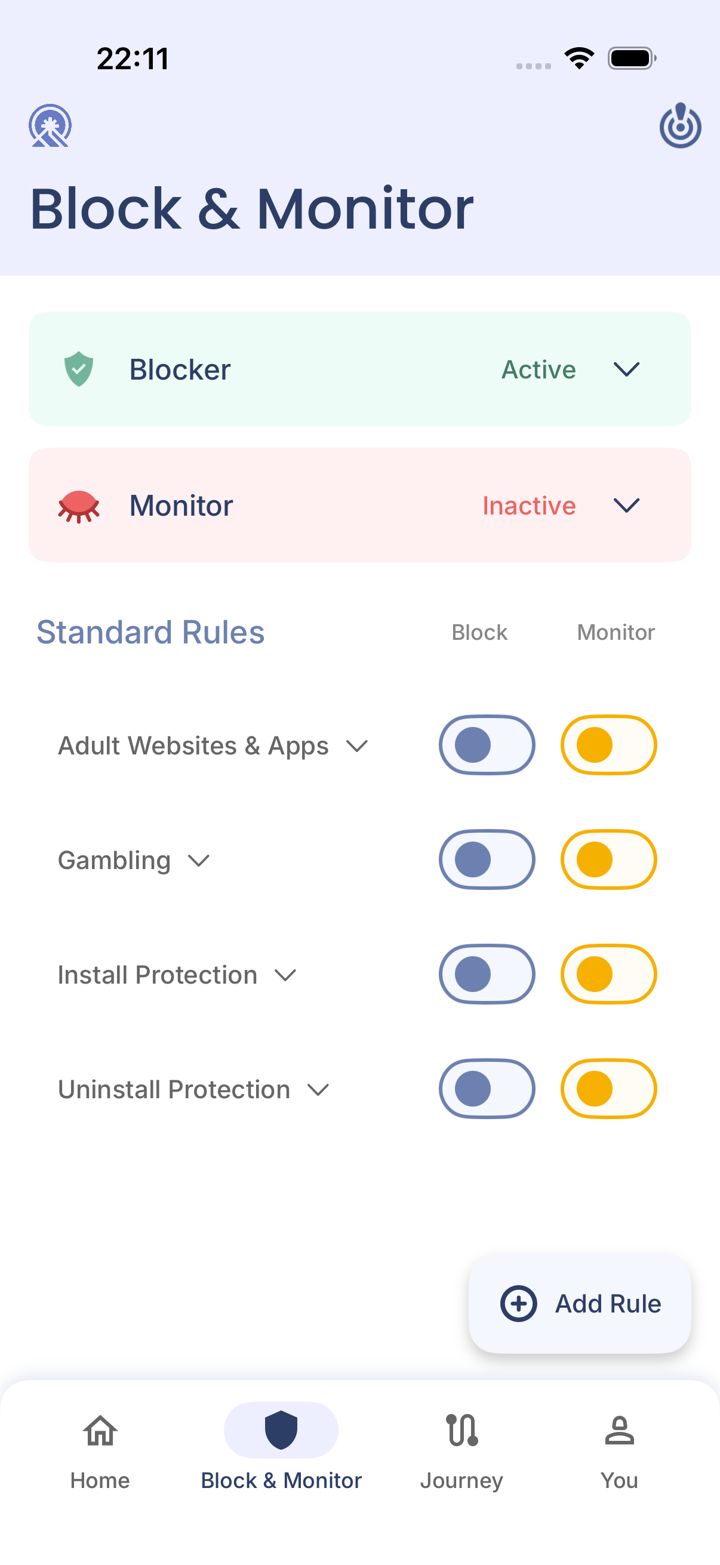
Open the Block & Monitor tab
Tap Block & Monitor in the bar at the bottom of the app.
Step 3 of 13
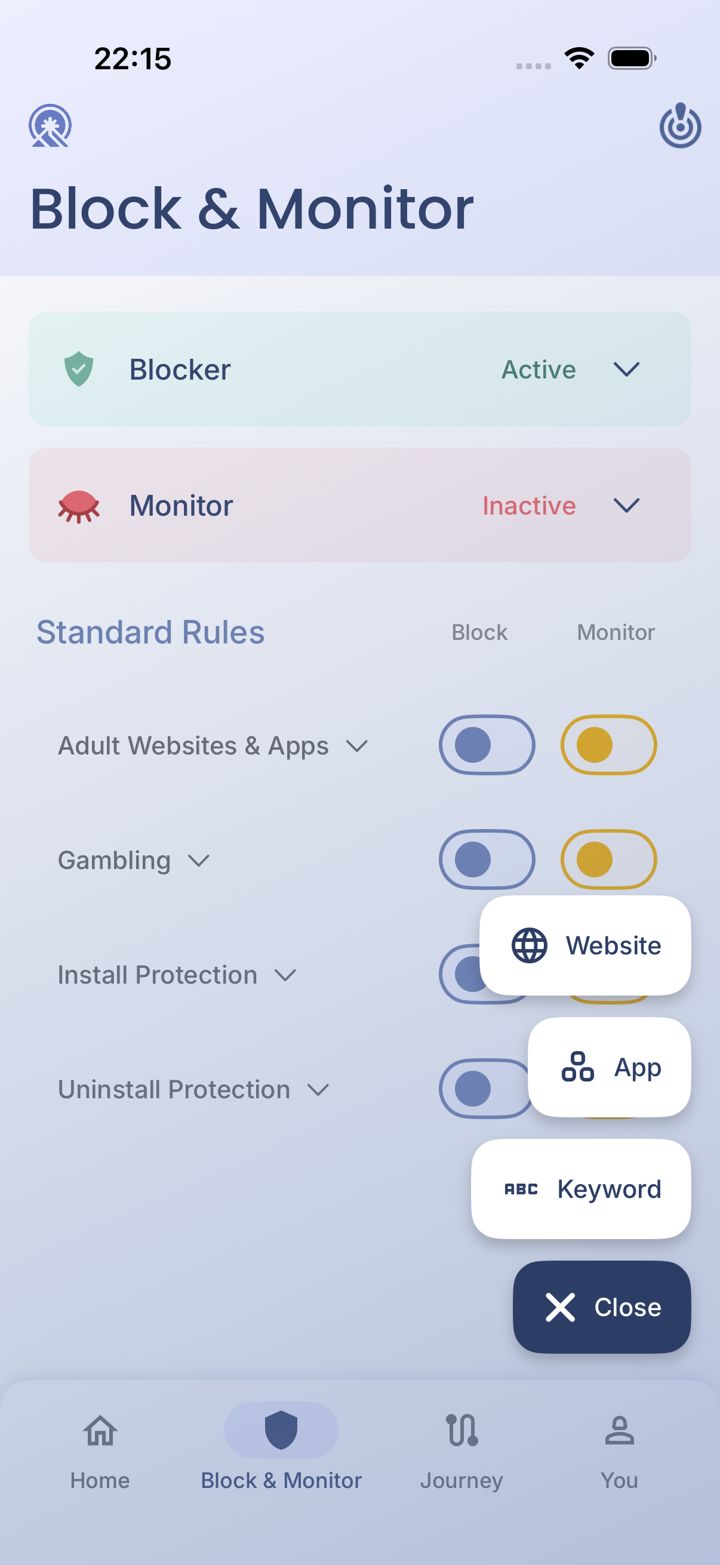
Tap Add Rule
Tap Add Rule in the bottom right corner. A small menu opens.
Step 4 of 13
Choose App
Tap App.
Step 5 of 13
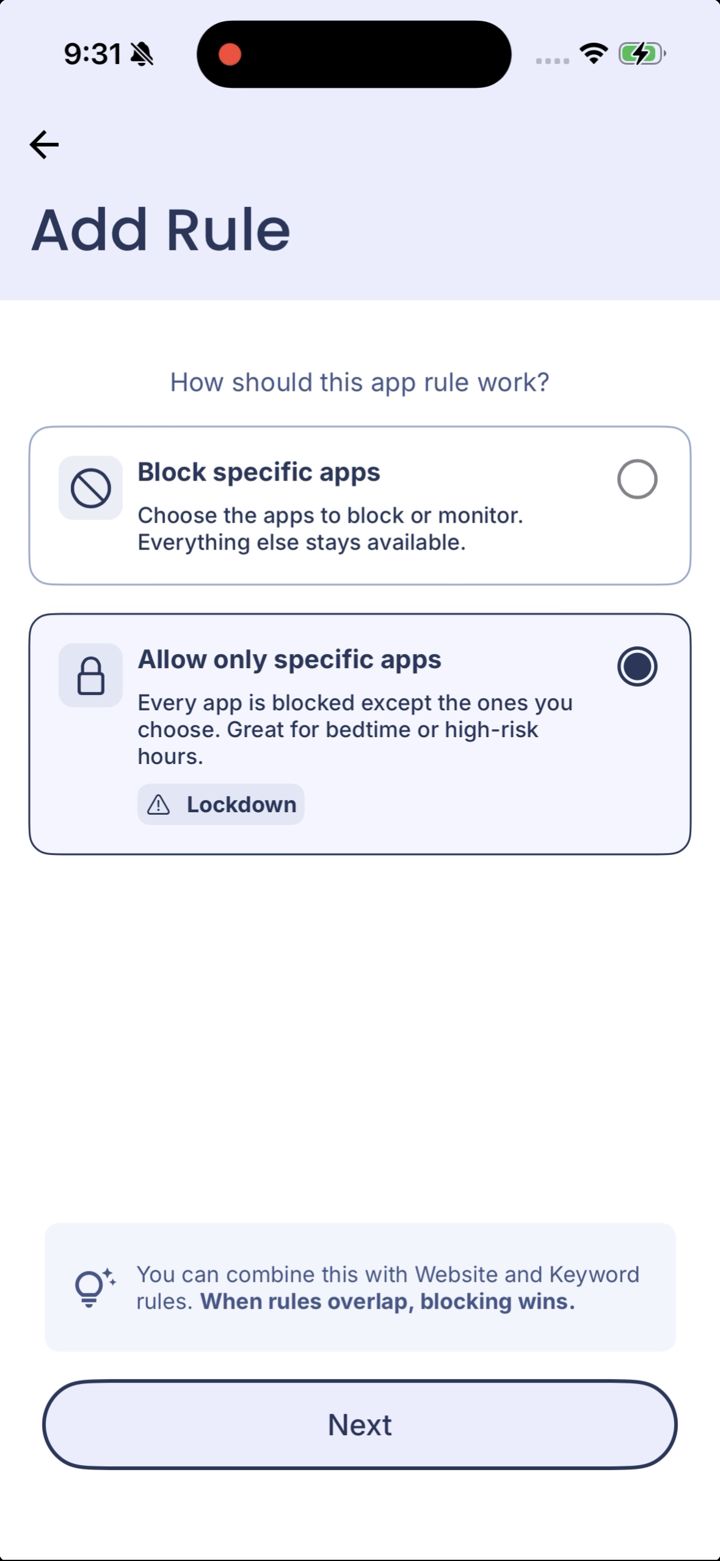
Choose Allow only specific apps
On How should this app rule work?, tap Allow only specific apps (marked Lockdown), then tap Next.
Step 6 of 13
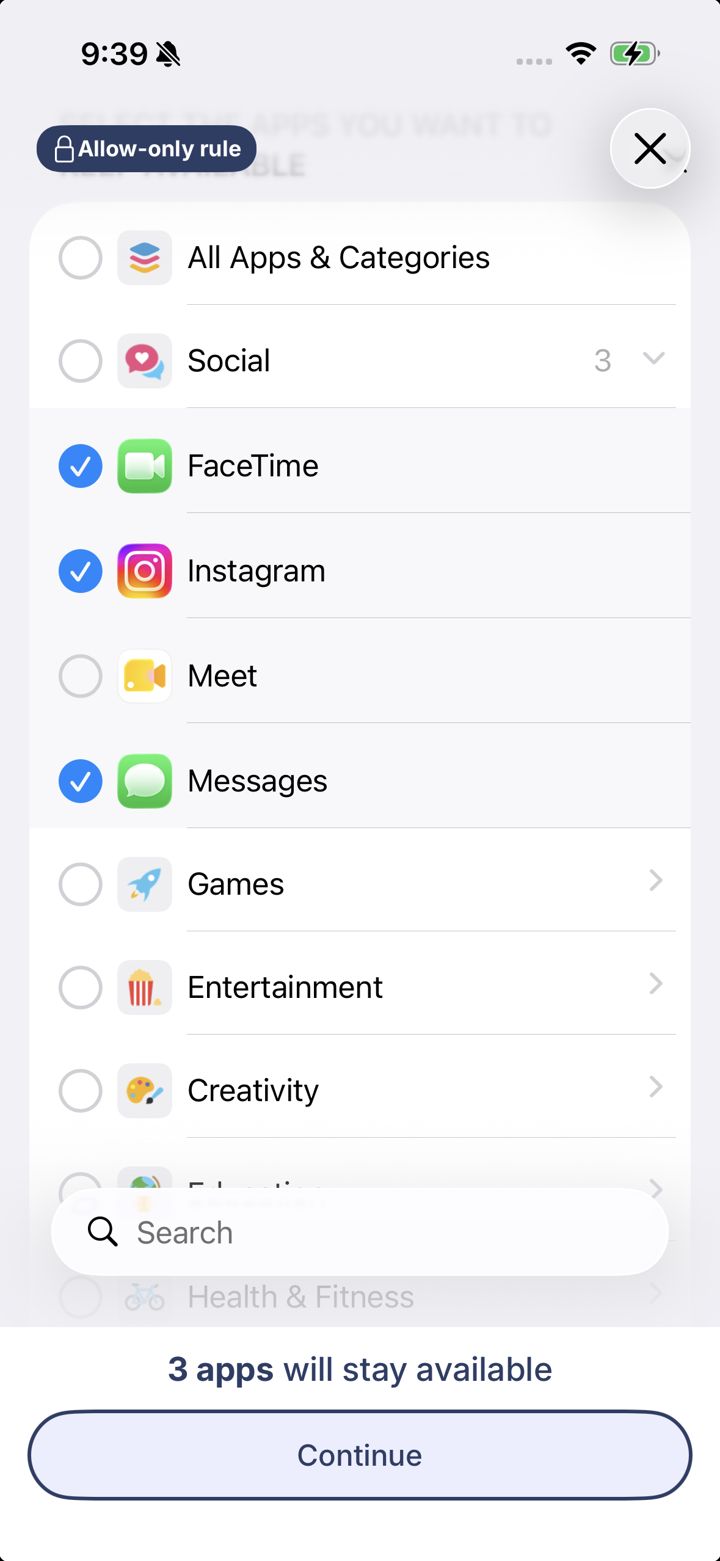
Tick the apps you want to keep
Tick each app that should stay available. Open a category with the arrow on the right, or use Search. The count at the bottom shows how many apps will stay available. Then tap Continue.
Here you're choosing what to keep, not what to block. Everything you don't tick will be blocked while the rule is on.
Think about what you'll really need during those hours, like Messages or Maps, and keep the list short.
Step 7 of 13
Should it be on all the time, or only at certain times?
Most people use Allow only for bedtime or their high-risk hours.
Step 8 of 13
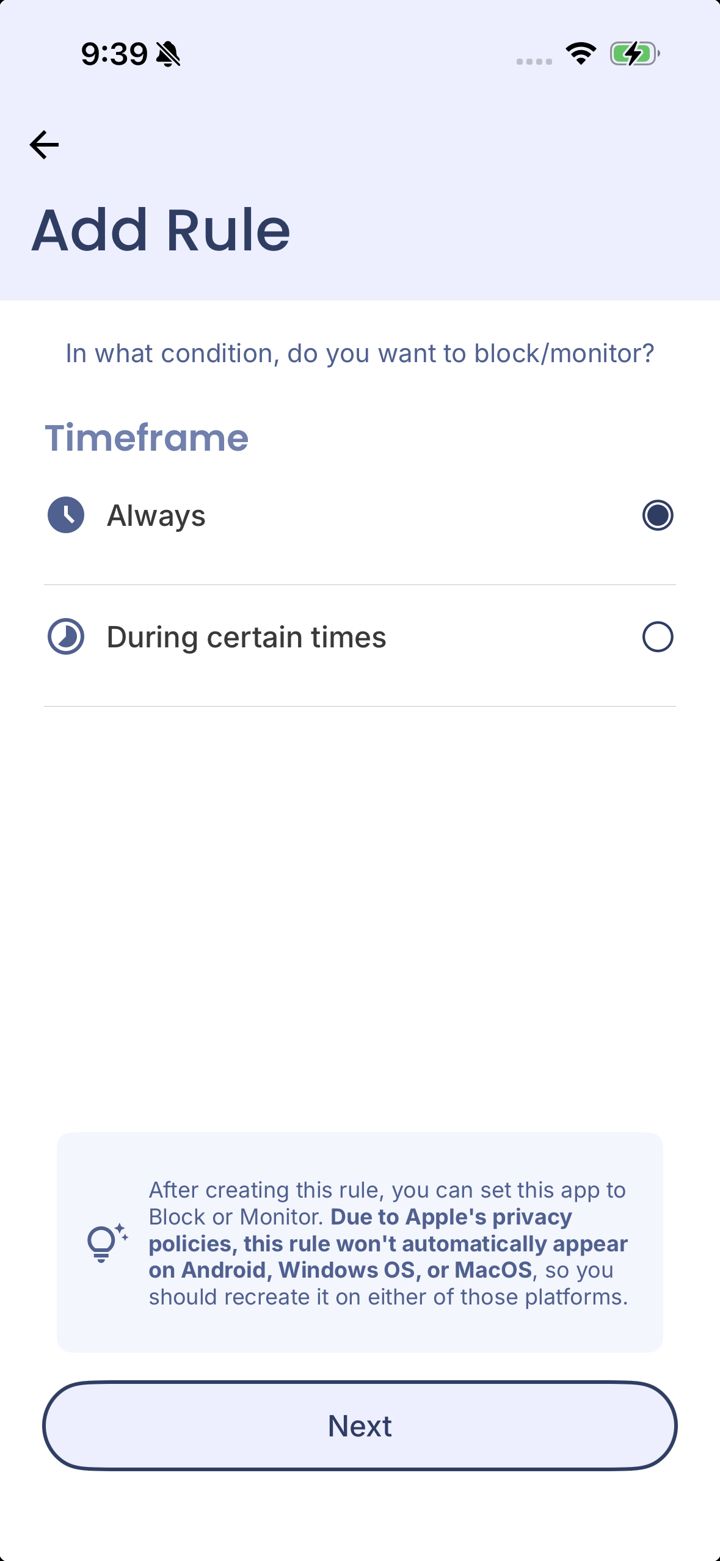
Choose During certain times
Under Timeframe, tap During certain times.
Step 9 of 13
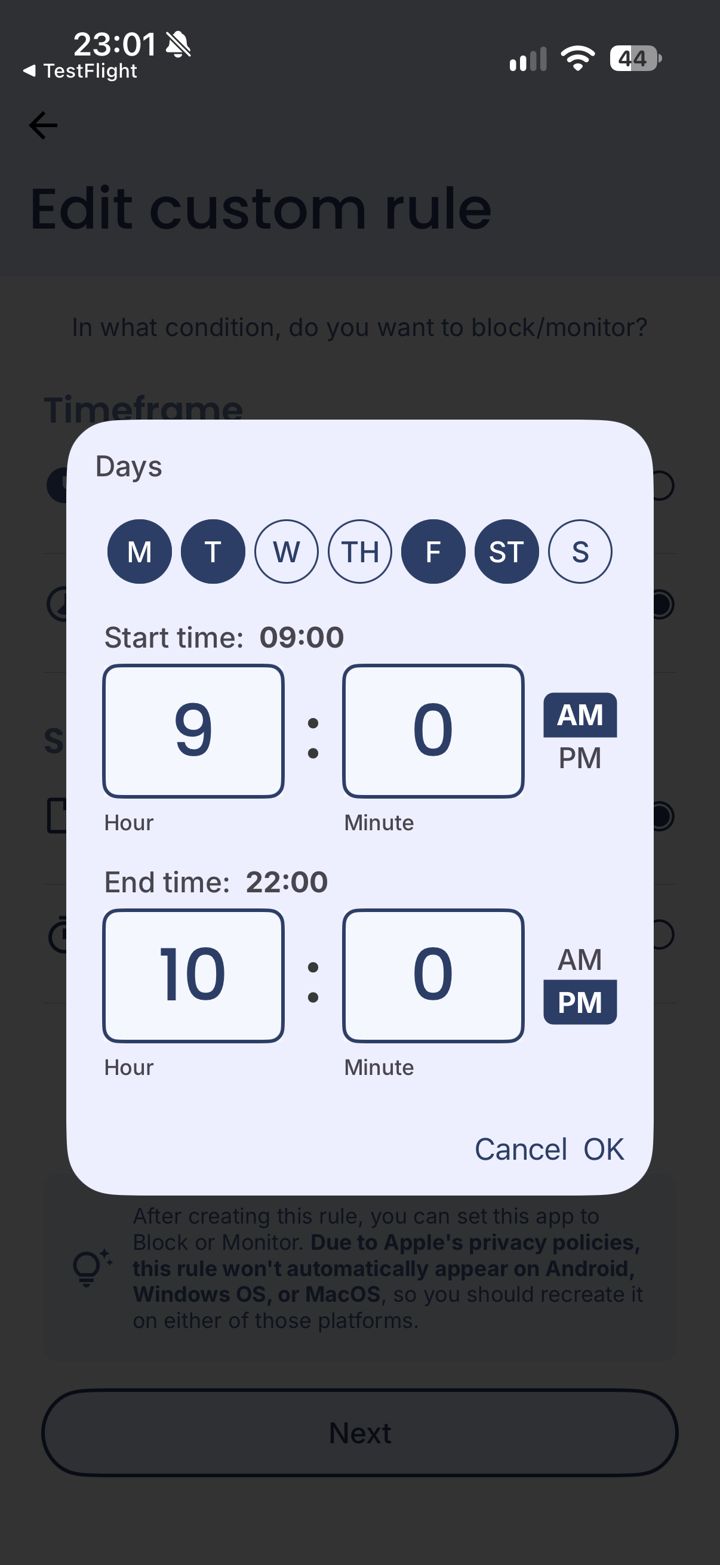
Pick the days and hours
Tap the days you want, set a Start time and End time, then tap OK.
These are the hours when every app except your list is blocked.
LeadMeNot · Add Rule
Step 10 of 13
Tap Next
Back on the Timeframe screen, tap Next.
Step 11 of 13
Keep Always, then tap Next
Leave Always selected and tap Next.
Rules you make on iPhone stay on iPhone. Because of Apple's privacy rules they don't copy to Android, Windows or Mac.
Step 12 of 13
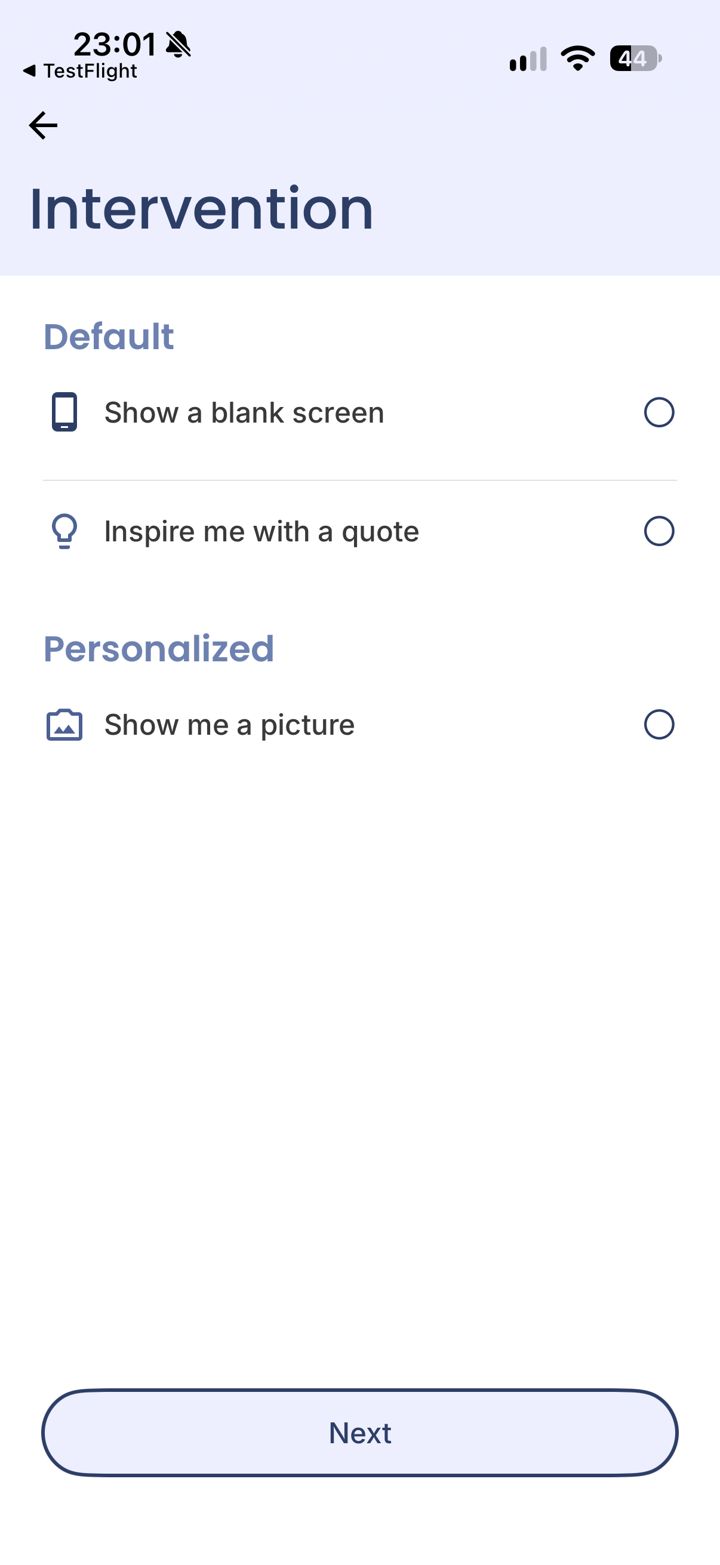
Choose what you see when it's blocked
Pick a blank screen, an inspiring quote, or a picture you choose. Then tap Next.
A personal picture (your family, a goal) is often the most effective reminder in a weak moment.
Step 13 of 13
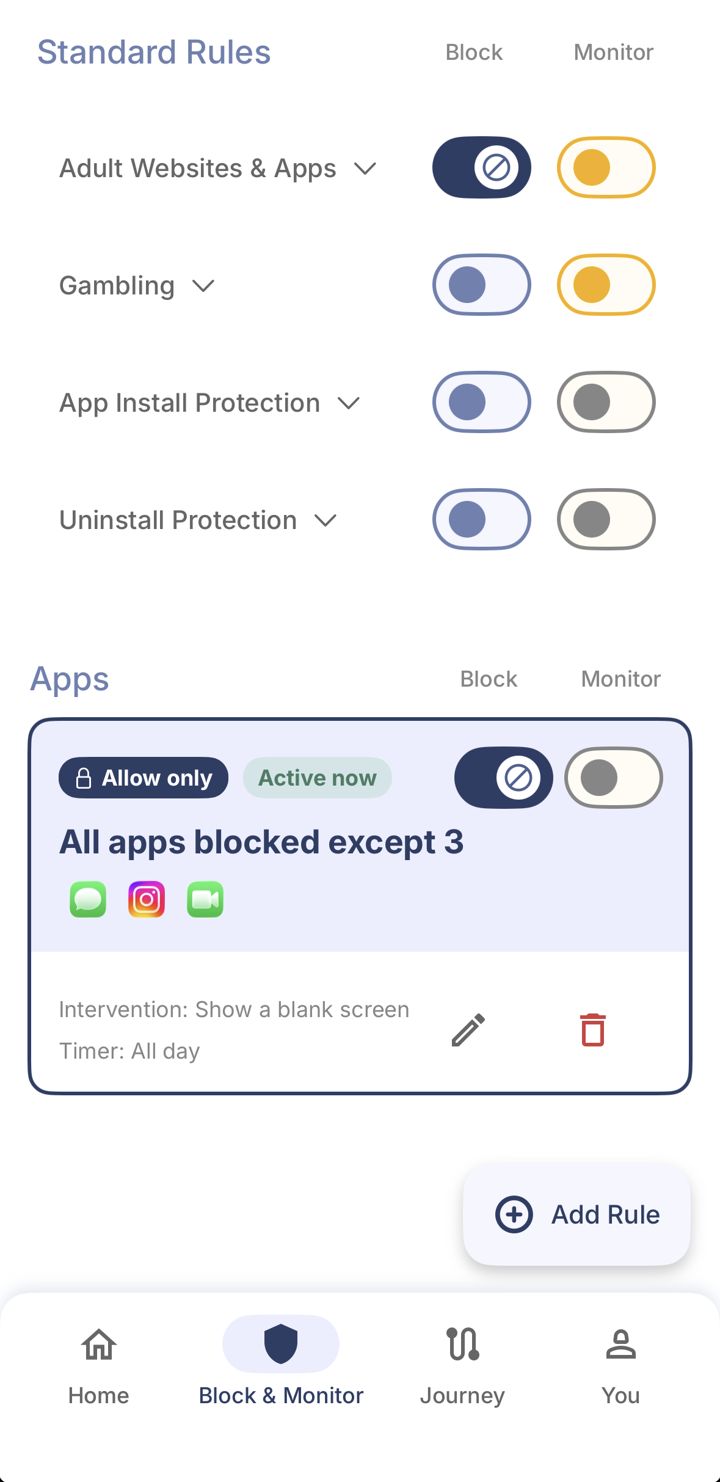
Check your Allow only rule
Your rule shows under Apps with an Allow only label, for example All apps blocked except 3, with the icons of the apps you kept. Active now means it's running. Make sure Block is switched on, and switch on Monitor too if you want your partner told when you hit it.
When rules overlap, blocking wins. If another rule blocks an app you kept here, that app is still blocked.
Did this work?
 That's a real step.
Your protection is set. If you've added a partner, they've got your back, so you're never doing this alone. Here's what people usually do next:
Sorry about that. Email Jason and we'll include which guide and step you were on, or ask our assistant.