Windows · Block porn & explicit content
Quit porn: turn on Adult Websites & Apps
Switch on our built-in adult list, close the gaps, lock it, and bring a partner in.
Not on Windows? iPhone & iPad · Android · Mac · Chromebook
First
Step 1 of 5
You're not alone in this
Wanting to stop is the hard part, and you've already started. Turn on the rule below, then bring a partner in: accountability is what makes it stick. If you're struggling right now, the assistant or jason@leadmenot.org is here, no judgement.
Step 2 of 5
Turn on Adult Websites & Apps
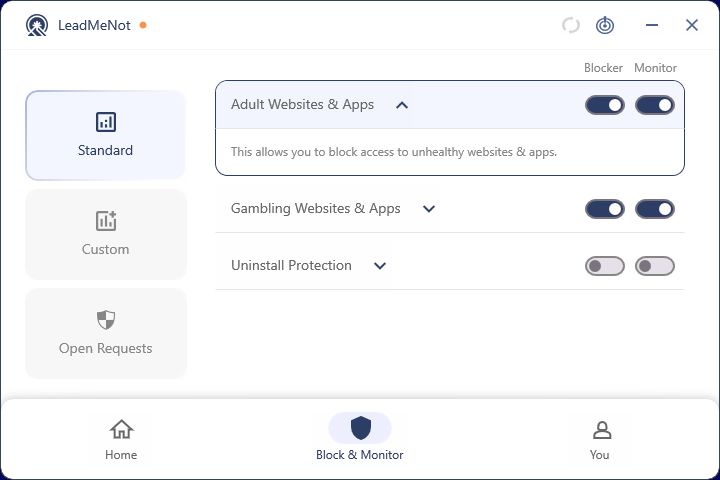
In Block & Monitor › Standard, switch on Blocker for Adult Websites & Apps, our built-in list of explicit sites, apps and search terms. It works across every browser and app. Switch on Monitor too, so your partner is alerted.
Step 3 of 5
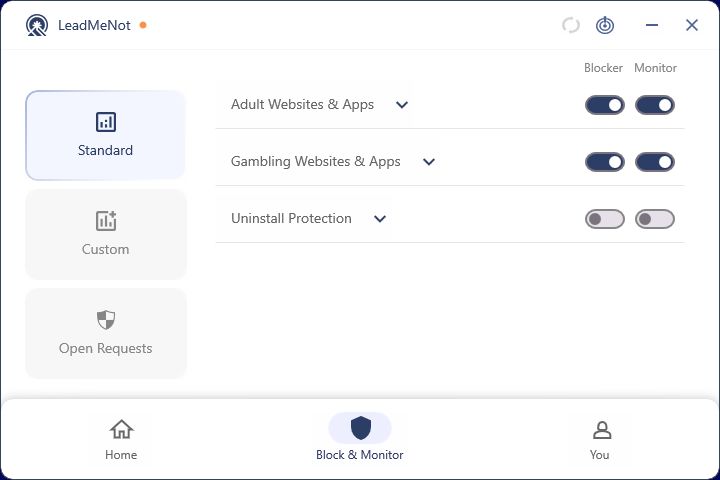
Close the gap: Uninstall Protection
Switch on Uninstall Protection in the same list, so LeadMeNot can't be removed in a weak moment.
Know the sites or words that get you? Add them as your own Website or Keyword rules on top.
Step 4 of 5
Lock it with your Safe Wall
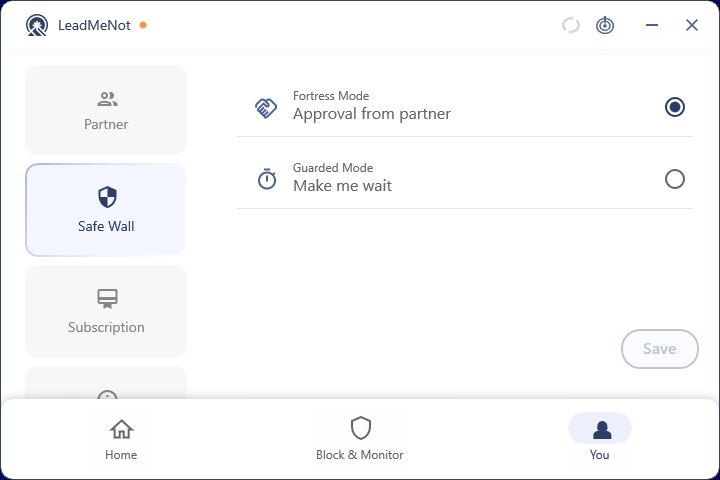
Under You › Safe Wall, choose Approval from partner, so turning the rule off needs your partner's OK.
Step 5 of 5
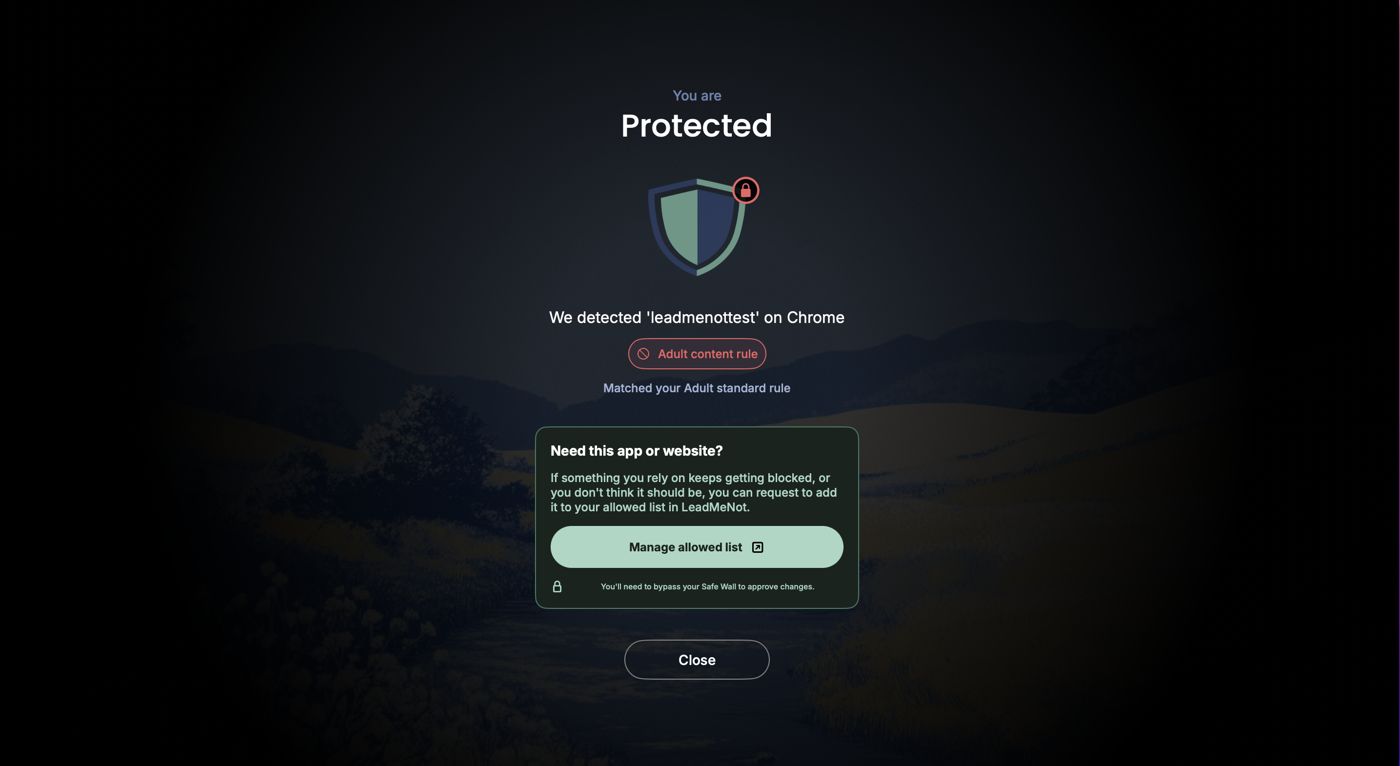
Test it: type leadmenottest
Open your browser, type leadmenottest into the address bar and go. If LeadMeNot blocks the page, everything is working.
Not blocked? Check you installed with Run as administrator, you're signed in and you restarted afterwards. Still not blocked? See Blocking isn't working on Windows.
The test only works while blocking is on, for example with Adult Websites & Apps switched on.
Did this work?
 That's a real step.
Your protection is set. If you've added a partner, they've got your back, so you're never doing this alone. Here's what people usually do next:
Sorry about that. Email Jason and we'll include which guide and step you were on, or ask our assistant.